 Documentation
OnDemand app development
Open OnDemand lets you develop and run your own web applications (OOD apps) directly in your browser, under your own MetaCentrum account — without asking the administrators for anything, and without modifying anything on the server.
A self-developed app is called a sandbox app. It lives in your home directory, runs as your user in the OnDemand per-user web server (PUN), and only you can see and launch it. A finished app can later be promoted to a shared app available to all OnDemand users (see below).
Who is this for?
You want to build a small web tool on top of MetaCentrum resources — e.g. a form that submits prepared jobs, a dashboard reading your data, a simple service for your group. Passenger apps can be written in Python (WSGI/Flask), Ruby (Rack/Sinatra/Rails) or Node.js. If you only need to run existing software, you don’t need this — see OnDemand instead.
It runs under your account
Everything about a sandbox app — source code, configuration, runtime data, logs — is stored in your home directory and executed under your user. No shared part of the OnDemand server is modified; your app cannot affect other users, and other users cannot see your app.
How to access the Develop menu
The Develop menu (the </> icon in the top navigation bar) is visible to every OnDemand user:
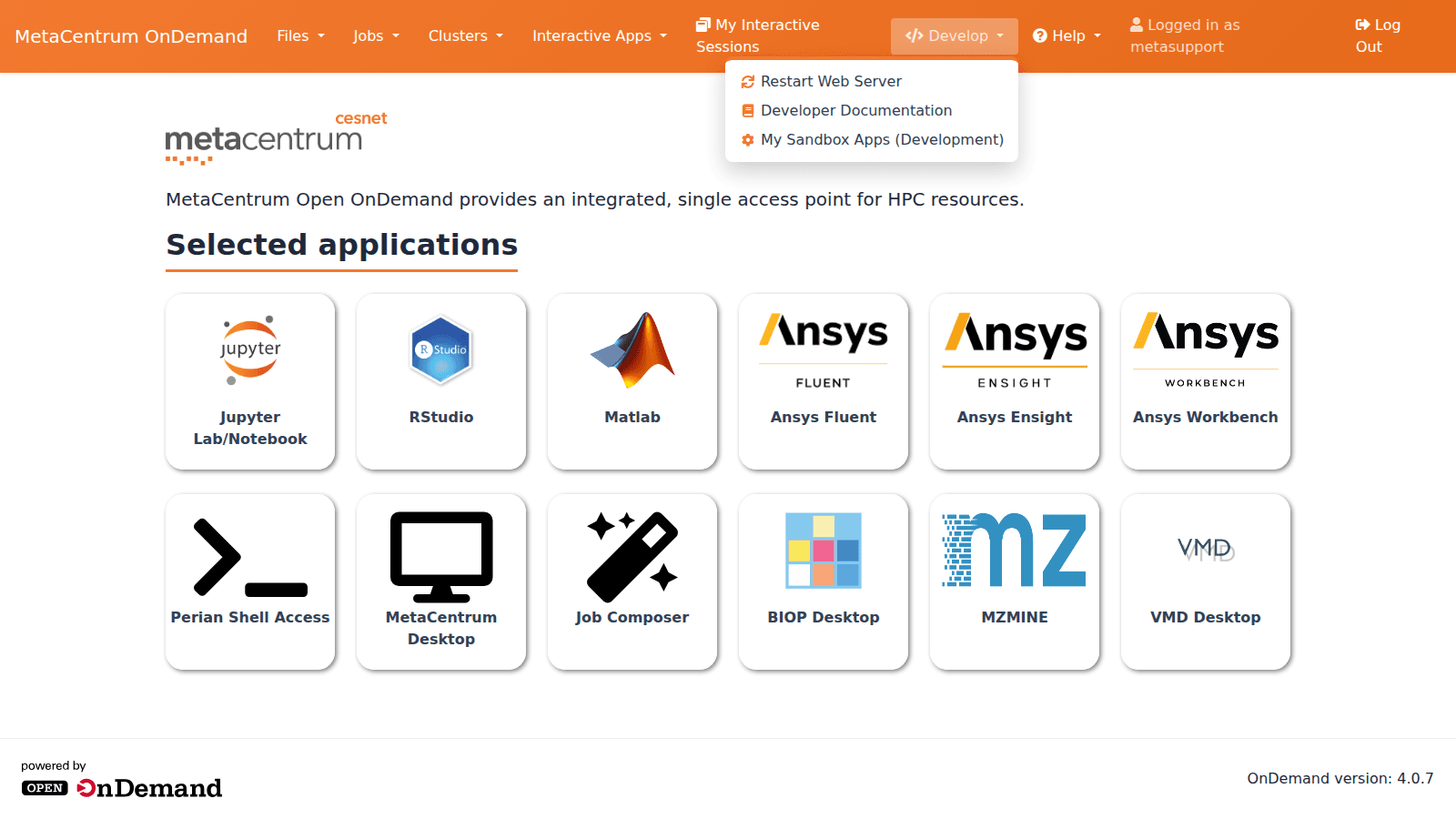
It contains:
- My Sandbox Apps (Development) — the list of your sandbox apps,
- Developer Documentation — link to the upstream Open OnDemand app development docs,
- Restart Web Server — restarts your personal OnDemand web server (needed after certain changes, see Troubleshooting).
Prerequisites
- a MetaCentrum account (the same one you use for OnDemand login),
- basic familiarity with git (each sandbox app must be a git repository),
- your files live on the home storages (
/storage/brno2/...); no other storage setup is needed.
Where sandbox apps live
All sandbox apps are stored in the directory
~/ondemand/dev/i.e. /storage/brno2/home/<user>/ondemand/dev/ for the default brno2 home — the same ~/ondemand directory that OnDemand already uses for its data. Each subdirectory of ~/ondemand/dev/ is one app. If you just got the Develop menu, the directory may be empty — it is created for you automatically.
Tutorial: a Python “Hello World” app
This walkthrough creates a minimal Python (WSGI) Passenger app, launches it, edits it and restarts it. You can follow it from the OnDemand Files app or the Shell Access of any frontend; commands below are shown for the shell.
1. Create the app directory
mkdir -p ~/ondemand/dev/python-hello-world
cd ~/ondemand/dev/python-hello-world
The app must be a git repository
OnDemand only lists directories under ~/ondemand/dev/ that are git repositories. Without git init (and at least one commit) your app will not appear in “My Sandbox Apps (Development)”.
git init2. Add the app manifest
Create manifest.yml describing the app:
name: Python Hello World
description: A tiny WSGI test app for OnDemand app development
Optional fields: icon (e.g. fa://flask), category and subcategory (where the app appears in menus — relevant only for promotion to a shared app, see below).
3. Add the application code
passenger_wsgi.py is the entrypoint for any Python (WSGI) app:
# passenger_wsgi.py
import sys

def application(environ, start_response):
    start_response('200 OK', [('Content-type', 'text/plain')])
    return ["Hello World from Open OnDemand (Python WSGI)!\n\n" + sys.version]
Ruby apps use a config.ru file instead; Node.js apps use app.js. See the upstream tutorials for Ruby and Node.js.
4. Commit
git add .
git commit -m "initial version"
5. Launch the app
Open Develop → My Sandbox Apps (Development). Your app appears in the table:
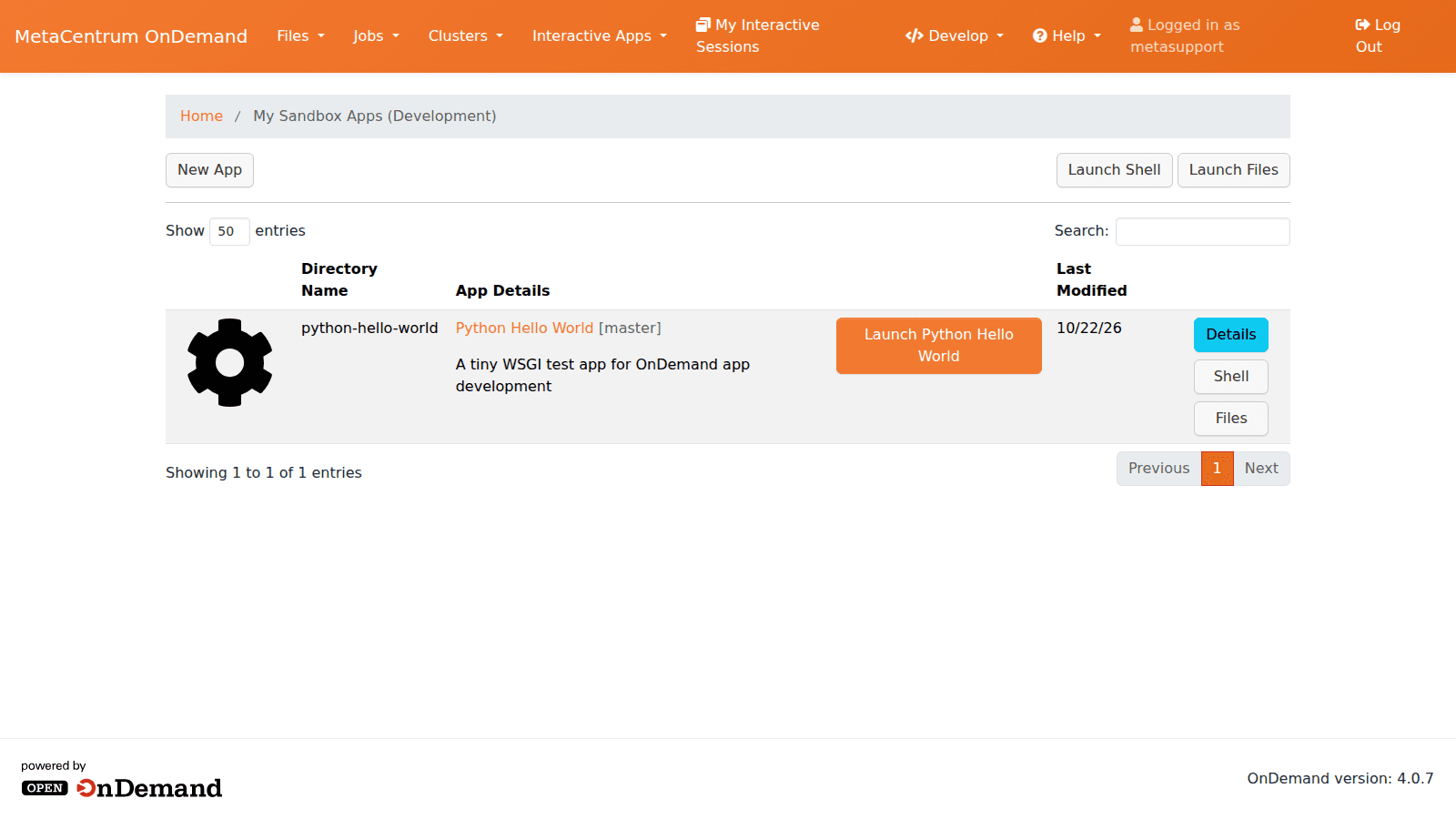
Clicking Launch Python Hello World opens the app in a new tab. The first launch of a new app shows an initialization page — click Initialize App (this configures your personal web server and restarts it once):
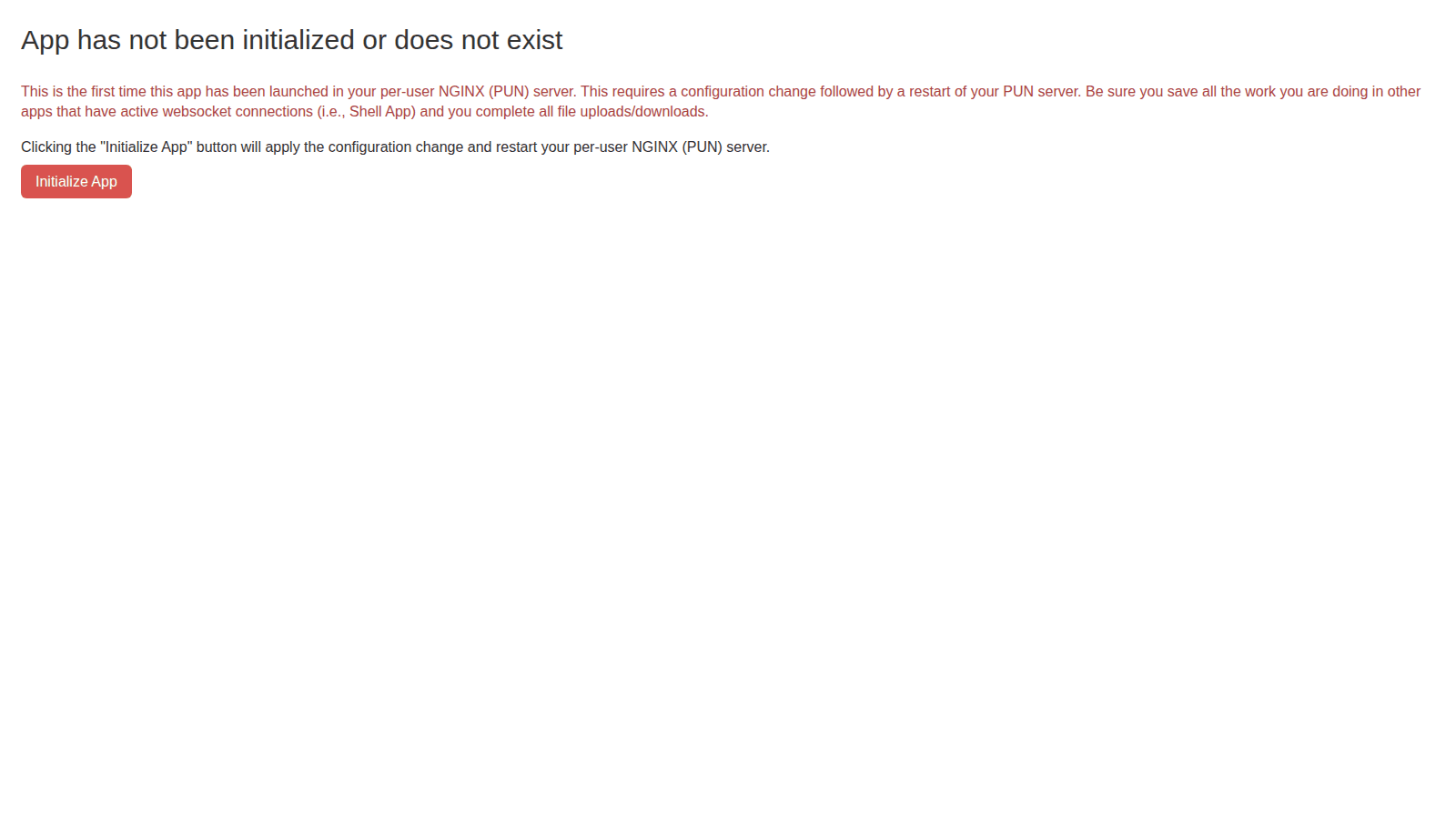
After the restart the app runs:

The app’s URL is https://ondemand.metacentrum.cz/pun/dev/<app-directory-name> (note: the app directory name, not your username).
6. Edit and restart
Edit the code as you like (via Files, Shell, or your own tools over SSH), then commit:
cd ~/ondemand/dev/python-hello-world
# ... edit passenger_wsgi.py ...
git commit -am "tweak message"
Reload the app in the browser. If the change does not appear, Passenger may still be running the old process — trigger a restart of your personal web server: Help → Restart Web Server, or from the Develop menu. After the restart the updated app is served.
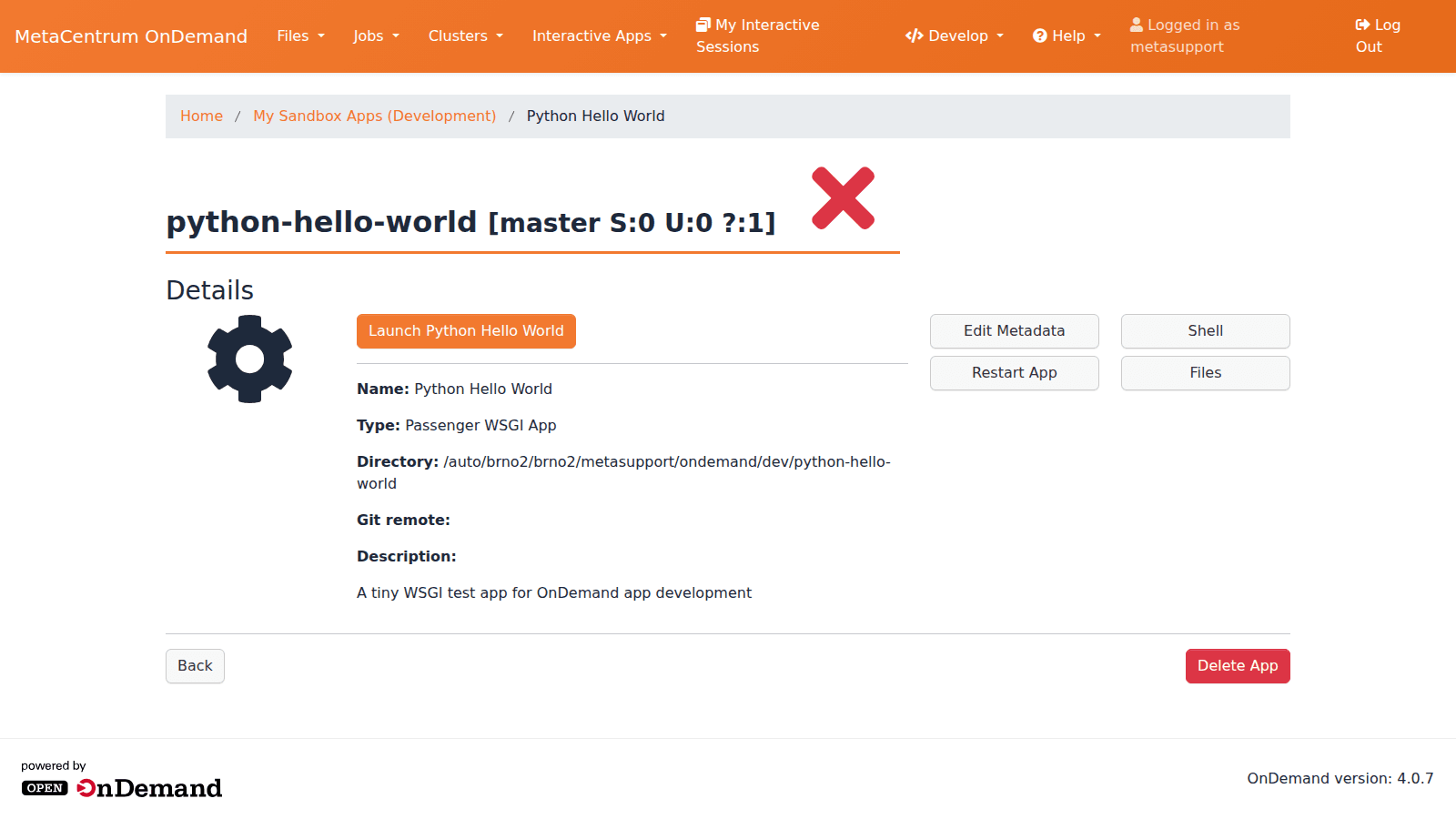
The app details page (Develop → My Sandbox Apps → Details) also offers Edit Metadata (name, description, icon — stored in the git config), and links to open the app directory in Shell or Files:
7. Where to find logs
- Application output / errors (Python tracebacks, Passenger startup failures): per-user NGINX log on the OnDemand server,
~/ondemand/logs/nginx/error.log— inspect it over SSH from any frontend, or via the OnDemand Files app. - Dashboard/OOD errors (e.g. a broken
manifest.ymlmakes the app disappear from the list): the nginx error log above plus the app listing page itself. - OOD command logs (
qstat,qsub, …) from interactive apps are written to~/ondemand/logs/too.
8. Delete the app
Either delete the directory (rm -rf ~/ondemand/dev/python-hello-world) or use Delete App on the app’s details page.
Creating an app from a git repository
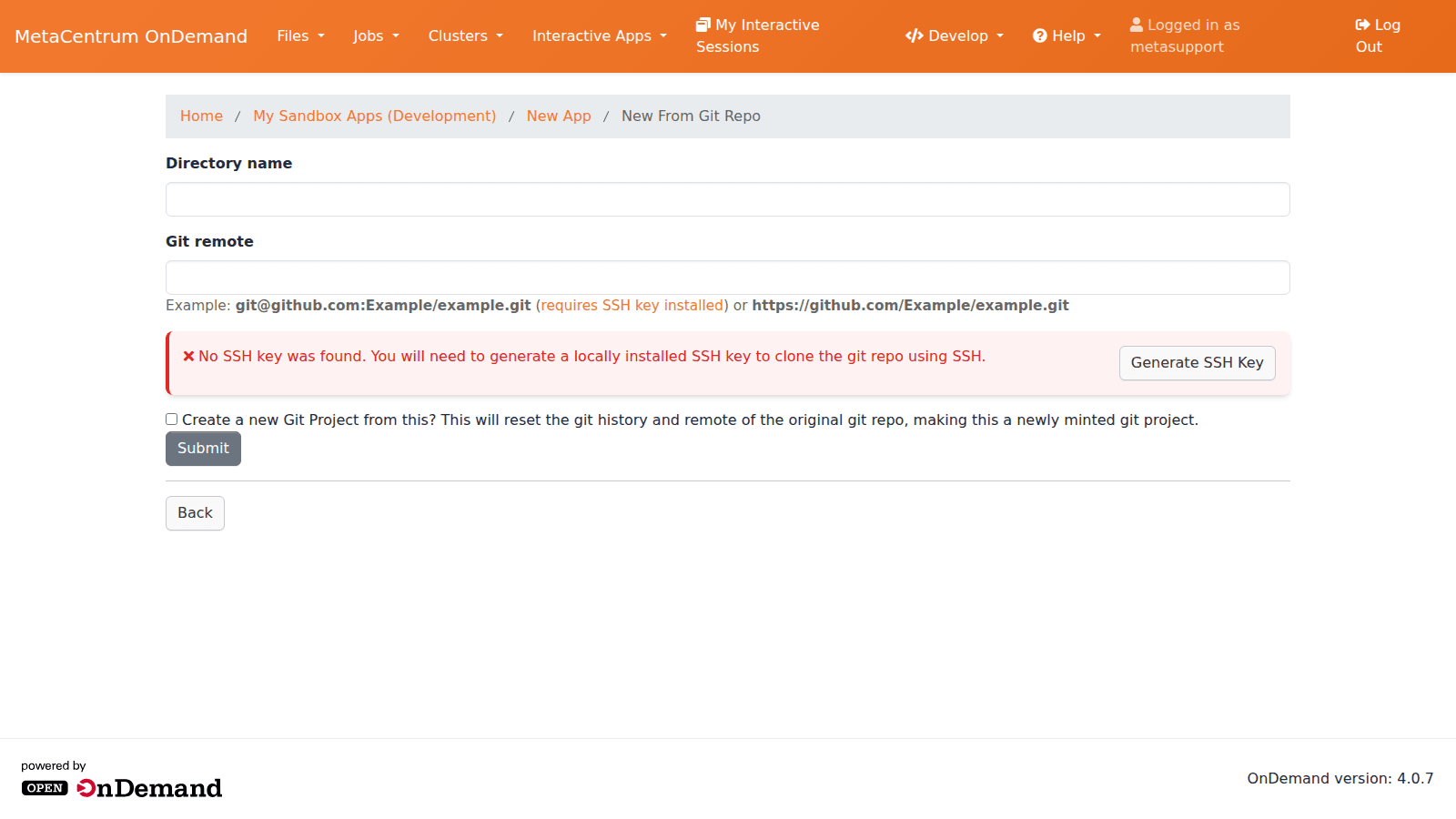
Instead of writing the app from scratch, Develop → My Sandbox Apps → New App → Clone Existing App clones an existing app from a git remote into ~/ondemand/dev/<name>/:
- HTTPS URLs work directly (e.g.
https://github.com/OSC/ood-apps.git), - SSH URLs (e.g.
git@github.com:...) require an SSH key — OnDemand offers a Generate SSH Key button on the same page, - tick Create a new Git Project from this? to reset history and detach the clone from the original repository.
This is the easiest way to start from one of the upstream example apps (e.g. the Flask example app) or a colleague’s shared app.
From sandbox app to shared app
A sandbox app is visible only to you. To make it available to all OnDemand users as a regular app in the Interactive Apps menu:
- Finish the app in your sandbox and commit everything.
- Set the
category(and optionallysubcategory) inmanifest.yml— this determines in which menu the shared app appears (e.g.category: Apps, or match an existing group). - Commit this change and push the app to a git repository reachable by the administrators (your own, or a MetaCentrum project repository).
- Contact MetaCentrum support (
metasupport@metacentrum.cz, or via support channels) and ask for the app to be installed as a shared app — include the git URL and a short description.
The administrators will review the app (security, resource usage, suitability) and install it under /var/www/ood/apps/sys/ on the OnDemand server. After installation, every OnDemand user can launch it; access can also be restricted to a group of users if needed (e.g. for licensed software).
First launch after installation
Installing a new shared app causes every user’s OnDemand web server to reconfigure on their next visit — active Shell sessions of other users may be disconnected once. This is normal.
Limitations and security notes
- Runs as your user: the app can read/write everything your account can (home, storages). Do not put secrets in the code you would not put in your home directory — and remember the app is reachable only by you, but treat it like any other software you run.
- No server changes: you cannot install system packages, bind ports, or modify the OnDemand server itself. Use only what your home directory and account allow (Python/Ruby/Node, your own virtual environments, pip/gem/npm installs into your home).
- Resource use: Passenger apps run on the OnDemand server — keep them lightweight. Computational work belongs in batch jobs, which the app can submit on behalf of the user (this is exactly what the built-in apps do).
- App must be a git repo — and keep it clean: the app listing reads the git status, showing e.g.
[master]or the current branch. __pycache__and other build artifacts appear in the app directory at runtime — add them to.gitignore.- The app URL contains your directory name only (
/pun/dev/<dir>); do not rely on the URL being secret.
Troubleshooting
My app does not appear in “My Sandbox Apps (Development)”
Most often the directory is not a git repository, or has no commits yet (git init && git add . && git commit -m init). Also check manifest.yml is valid YAML with a name: field.
“App has not been initialized or does not exist” Normal on the very first launch — click Initialize App. If it appears later, the per-user server lost the app config: use Help → Restart Web Server and reload.
“Error — invalid app root … gateway/…”
You reached the app through a wrong URL. Use the Launch button in the sandbox app list, or the URL form https://ondemand.metacentrum.cz/pun/dev/<app-directory-name> (no username in the path).
My code changes do not show up Commit the files (git) and restart the web server (Help → Restart Web Server). Passenger caches the running app process.
App fails to boot (error page / 502)
Check ~/ondemand/logs/nginx/error.log for the Python traceback / Passenger error. Common causes: syntax error in passenger_wsgi.py, missing dependency (use a virtual environment and a bin/python wrapper — remember chmod +x bin/python).
Cloning from git fails For SSH remotes, generate an SSH key first (button on the clone page) and add the public key to your git account. HTTPS remotes work without keys.
More background: the upstream Open OnDemand app development documentation and the Passenger app tutorials (Ruby, Python, Node.js starters).
Last updated on