 Documentation
MDDash
MDDash is a browser-based Virtual Research Environment for molecular dynamics (MD) simulations. It covers the full lifecycle of an MD experiment — prepare, tune, run, analyze, and publish — without leaving the browser and without installing anything.
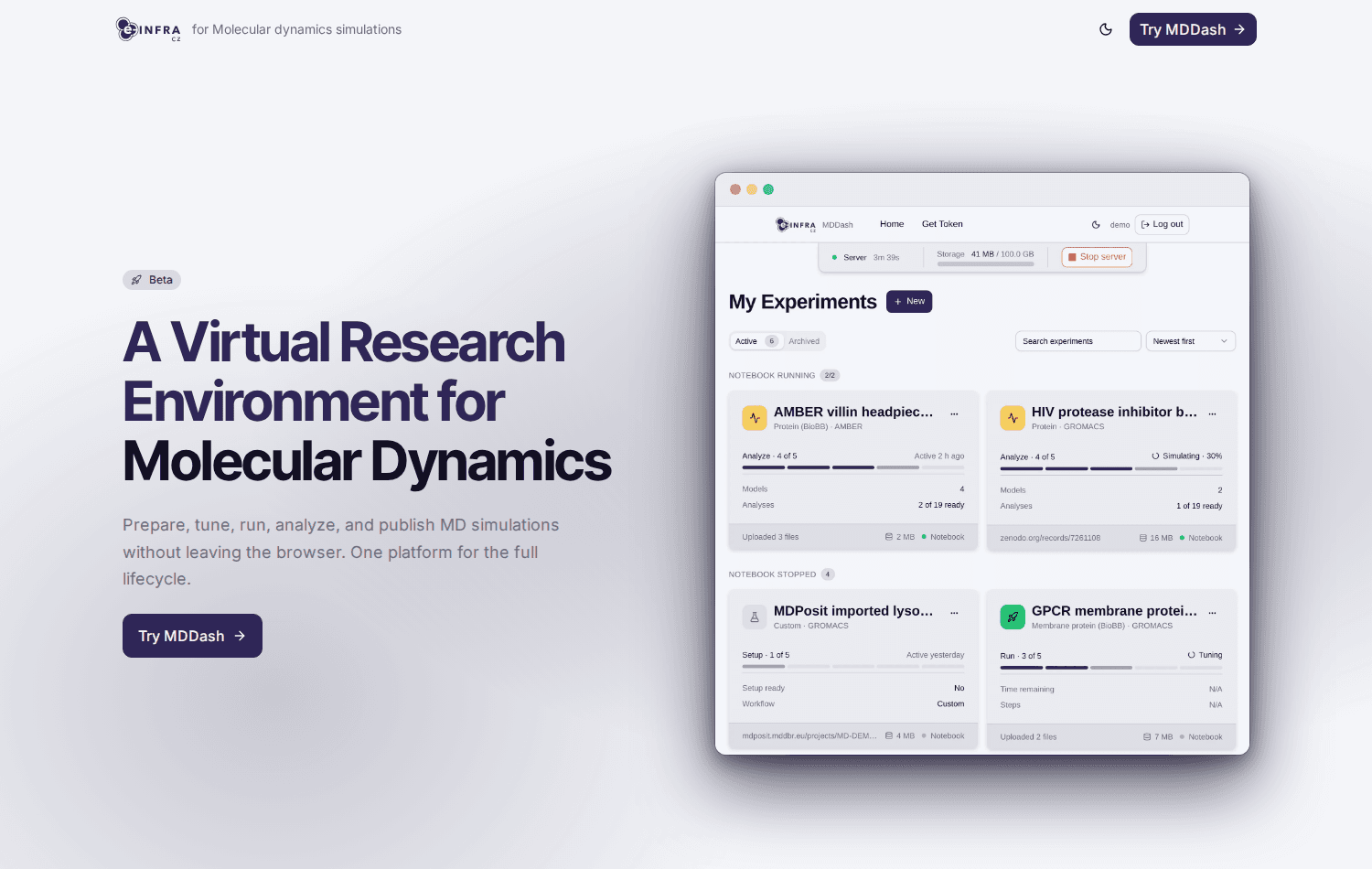
MDDash supports the GROMACS and AMBER simulation engines. Simulations run as jobs on the e-INFRA CZ Kubernetes infrastructure — they keep running even if you close the browser, and you can follow their progress and logs from any device.
Test mode — access on request
MDDash is a new service (e-INFRA CZ project, developed at Masaryk University / CERIT-SC) and is currently in test mode: access is granted on request. To get access, write to meta@cesnet.cz and ask for the MDDash service.
Who is it for
- You run (or want to run) molecular dynamics simulations — proteins, membranes, other biomolecular systems — with GROMACS or AMBER.
- You want the whole workflow in one place: input preparation, performance tuning, production runs, trajectory analysis, and publishing the data with a DOI.
- You do not want to manage a cluster, write job scripts, or install simulation software — everything runs in MDDash’s managed JupyterLab environment.
If you prefer to run GROMACS/AMBER directly on the HPC clusters, see software modules and batch jobs instead.
What MDDash does
- Reproducibility by design — every step of an experiment captures metadata; procedures are executable Jupyter notebooks; experiments can be re-created directly from any published MDRepo record.
- No installation, no terminal — sign in with your e-INFRA CZ account, get an isolated workspace with persistent storage, and work from a browser.
- Five-stage wizard workflow (see below) guiding the experiment from input files to a published dataset.
- Performance tuning — benchmarks your simulation across many hardware configurations (CPU/GPU splits, MPI ranks, threads) and reports the fastest and the most cost-effective one.
- Integrated visualization — Mol* viewer for inspecting trajectories, available even during running simulations.
- FAIR data out of the box — publish experiments to MDRepo with MD-specific metadata; every experiment can get a persistent DOI.
- Bring your own notebooks — a curated notebook collection ships with the platform; research groups can plug in their own Git or Binder-compatible repositories.
- Open source (MIT) — see the source on GitHub.
The workflow
Every project in MDDash is an experiment, run through a five-step wizard at the top of the experiment page:
| Step | What happens |
|---|---|
| 1. Setup | Get input files into the experiment (PDB structure, local upload, or a DOI/repository link) and run the setup notebook to generate the simulation manifest — which file plays which role (run input, topology, coordinates, …). |
| 2. Tune | Benchmark the simulation across execution configurations (CPU/GPU splits, MPI ranks, threads) and see measured performance (ns/day), estimated runtime and cost. Optional — a manual configuration can be used instead. |
| 3. Run | Launch the production simulation as a cluster job with the chosen parameters. Live progress and logs in the browser; the job survives disconnects. |
| 4. Analyze | View the trajectory in the 3D Mol* viewer and run built-in analyses (RMSD, PCA, hydrogen bonds, membrane metrics, energies, …) as cluster jobs. |
| 5. Publish | Upload the experiment to MDRepo as a draft record, then publish it there to mint a DOI. |
Steps unlock automatically as the underlying work completes; you can always go back to earlier steps.
Getting access
- Registration: the service is in test mode — write to meta@cesnet.cz and ask for MDDash access.
- Sign in: go to mddash.cloud.e-infra.cz, click Launch MDDash, then Sign in with e-INFRA CZ — the same institutional login you use for other MetaCentrum web services (web services login).
Access denied at login?
If you see “Access denied” after signing in, your account has not been registered for MDDash yet — see step 1 above.
Step-by-step tutorial
This walkthrough creates a complete experiment for a small test protein (PDB ID 1L2Y, the villin headpiece — known to work with the default workflow without editing anything). Expect the whole setup stage to take a few minutes.
1. Start your server
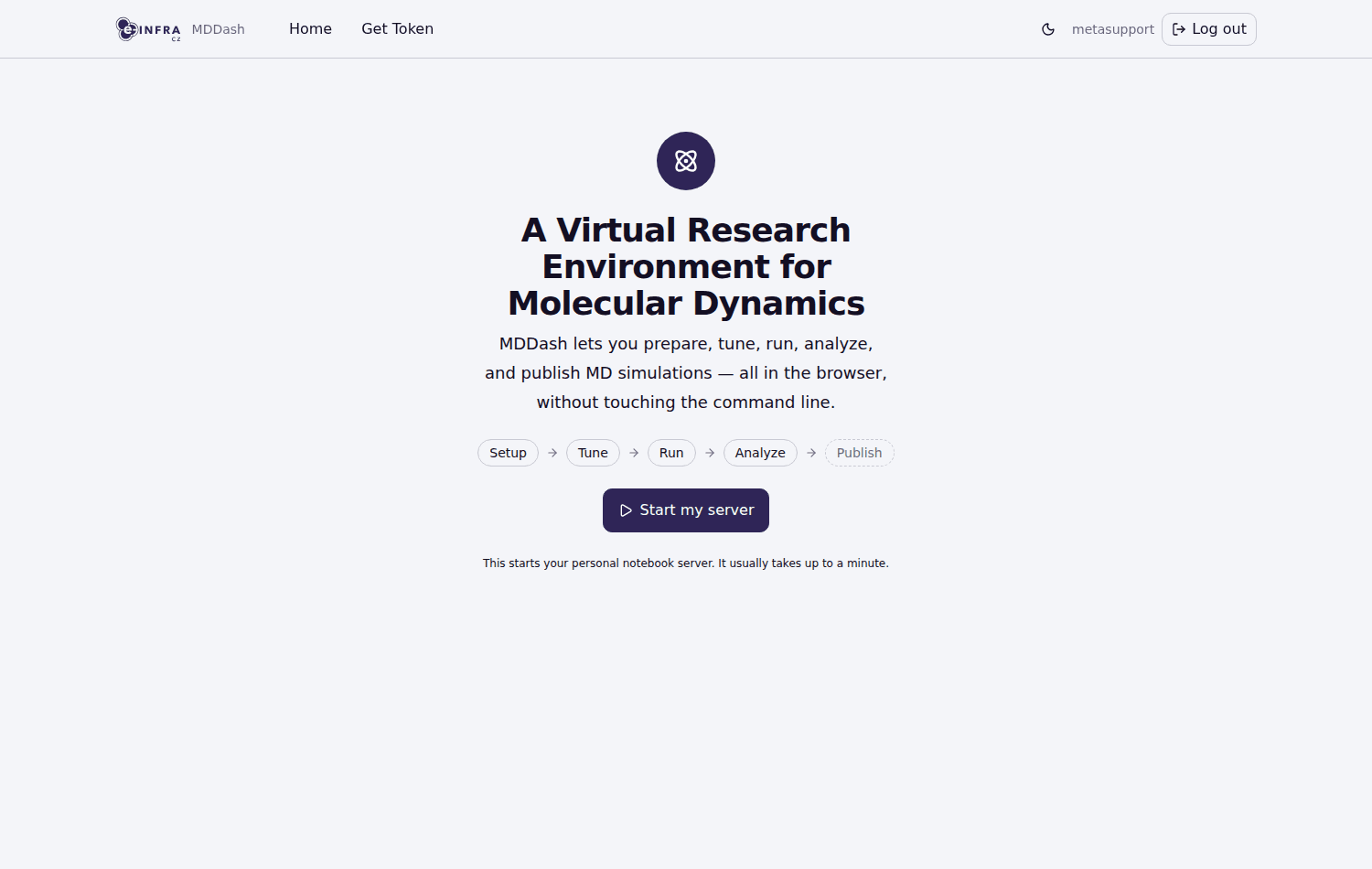
After signing in you land on the JupyterHub home page. Click Start my server — this provisions your personal workspace (it takes up to a minute; the first time it also creates your storage). When it is ready, you are taken to the MDDash dashboard.
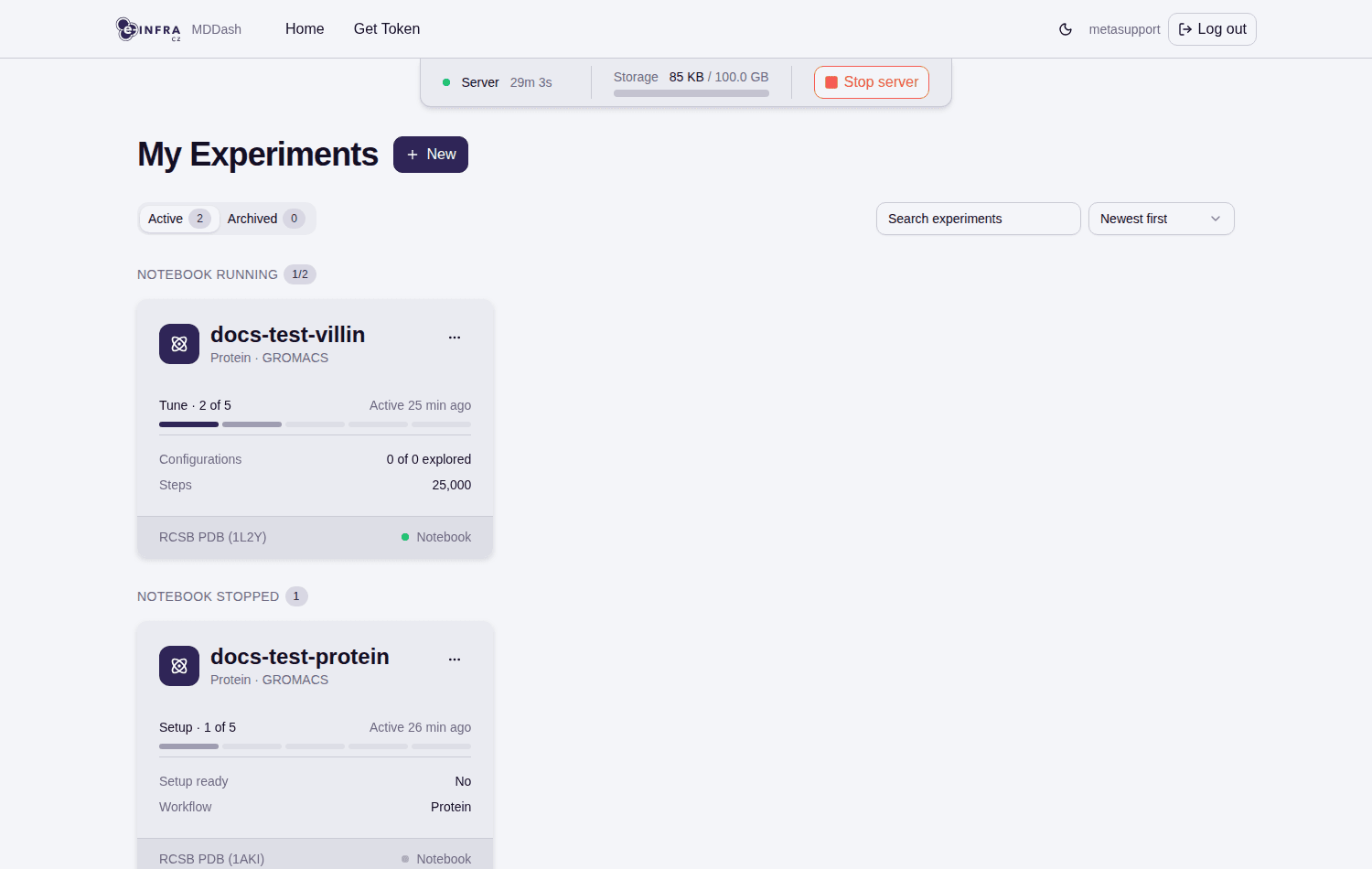
The dashboard shows your experiments (“My Experiments”), the New button, and a status bar with server uptime and storage usage. You can Stop server / Start my server at any time — your data and running jobs are not affected.
2. Create an experiment
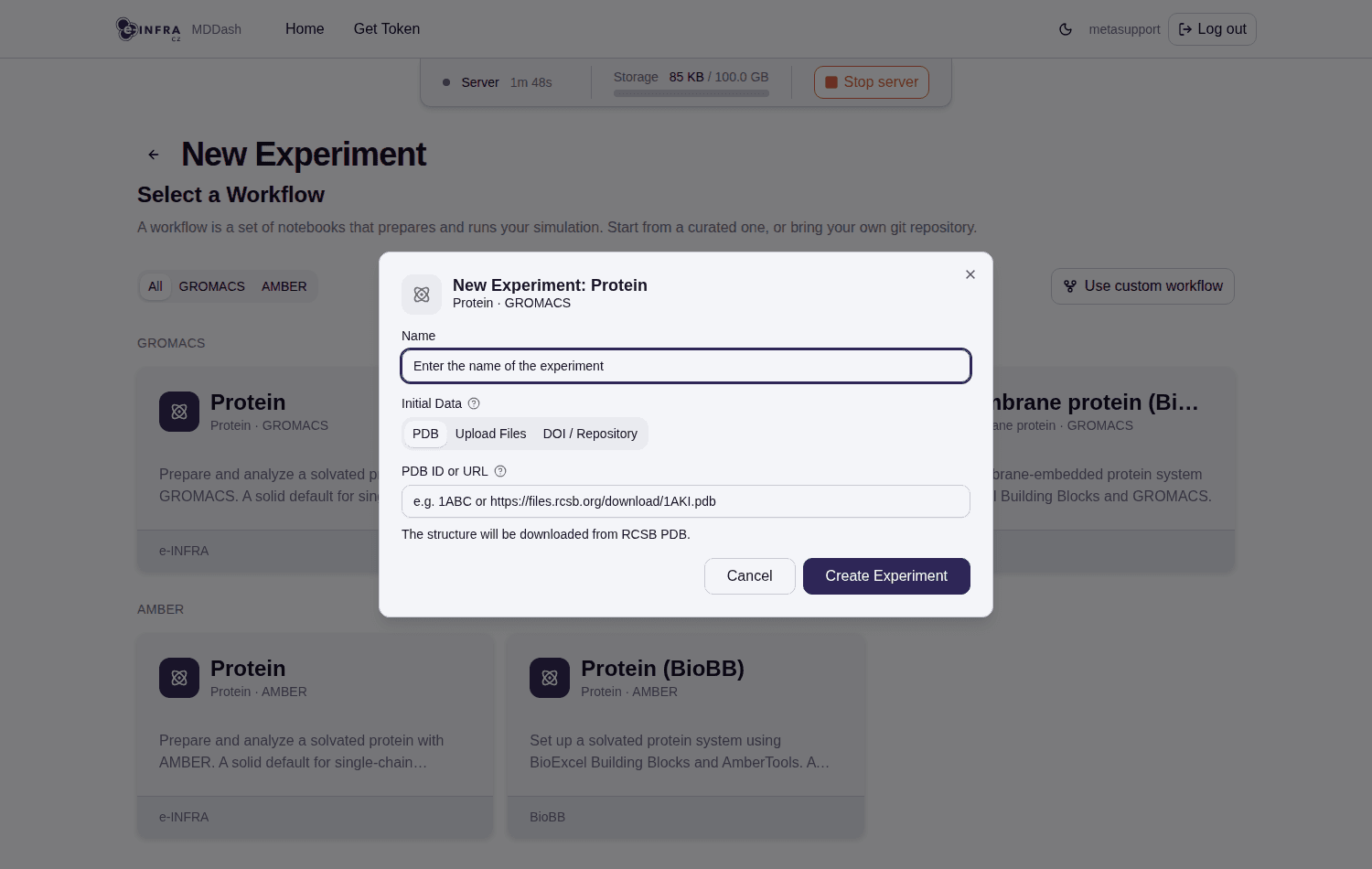
Click New. The New Experiment page shows curated workflow cards, grouped by engine (GROMACS / AMBER) and simulation category (protein, membrane protein, with plain or BioBB variants). Alternatively, Use custom workflow creates an experiment from your own git repository of notebooks.
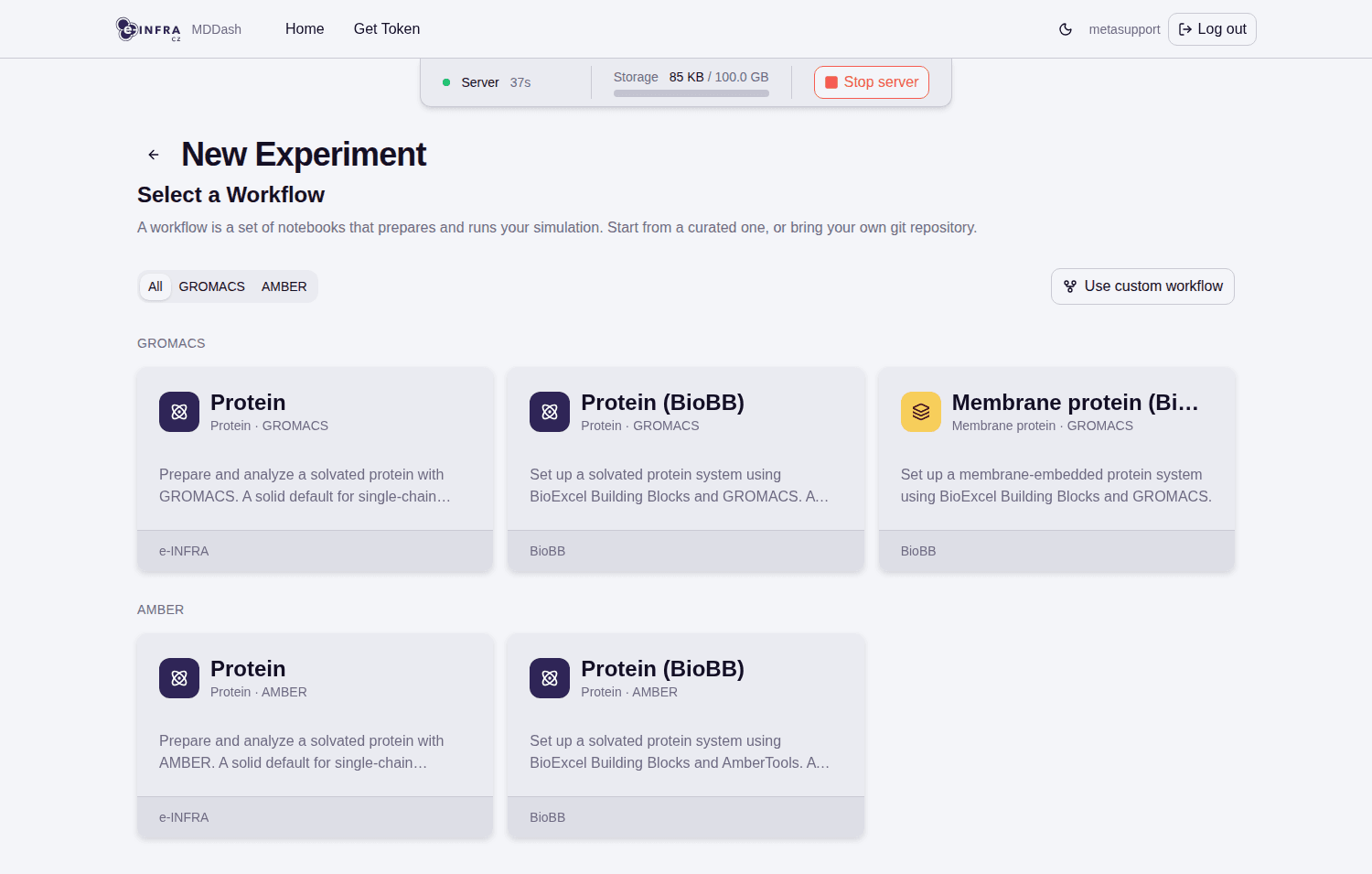
Click the Protein · GROMACS card. In the creation dialog:
- Name the experiment (e.g.
villin-test), - choose Initial Data — the PDB tab is the default; enter a PDB ID (here
1L2Y). You can also upload files or import from a DOI/repository link. - Click Create Experiment.
3. Setup — run the setup notebook
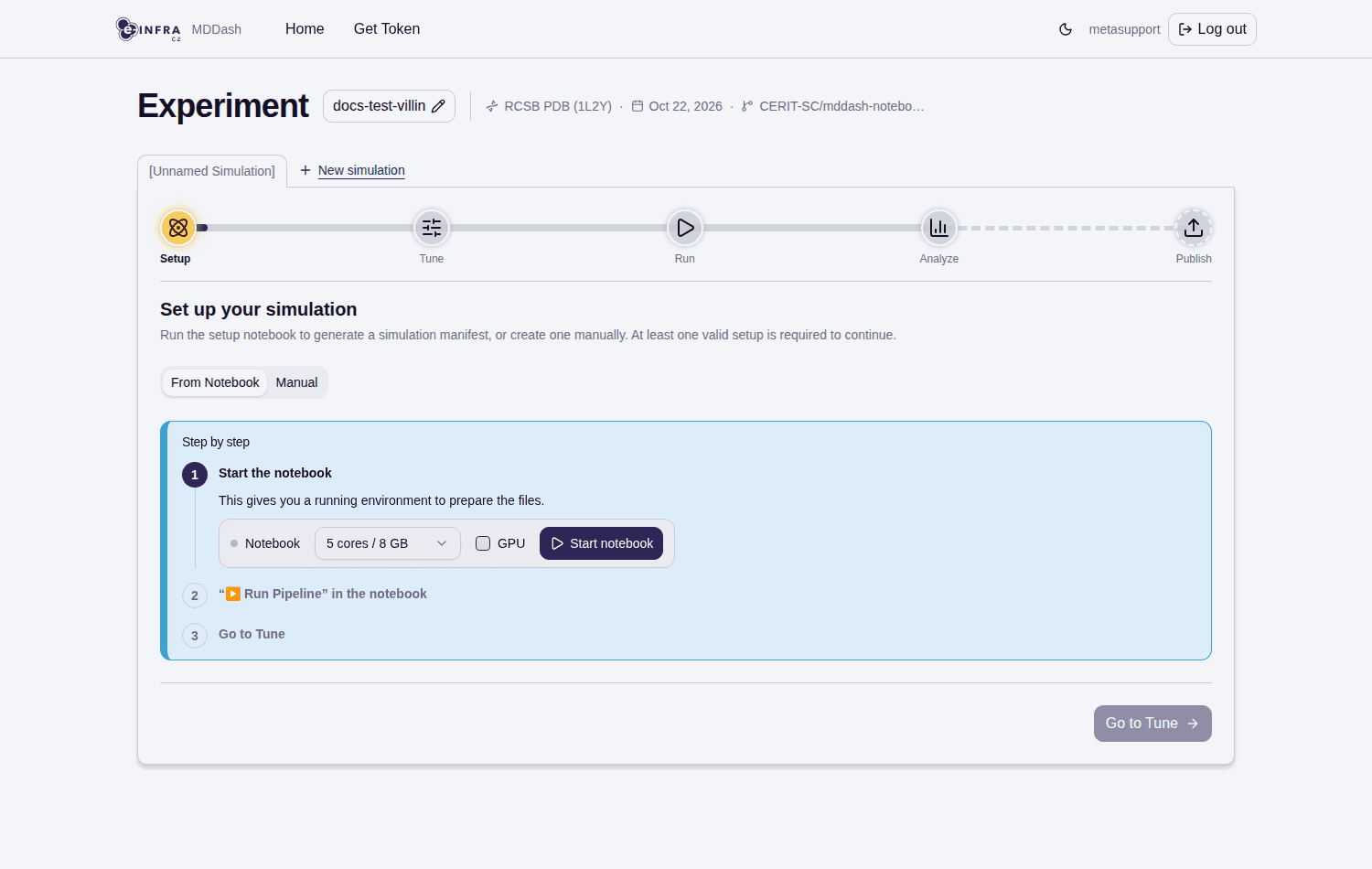
The experiment opens on the Setup step. Click Start notebook — this spawns the experiment’s JupyterLab environment (GROMACS, AmberTools, NGL included). When it is ready, click Open notebook.
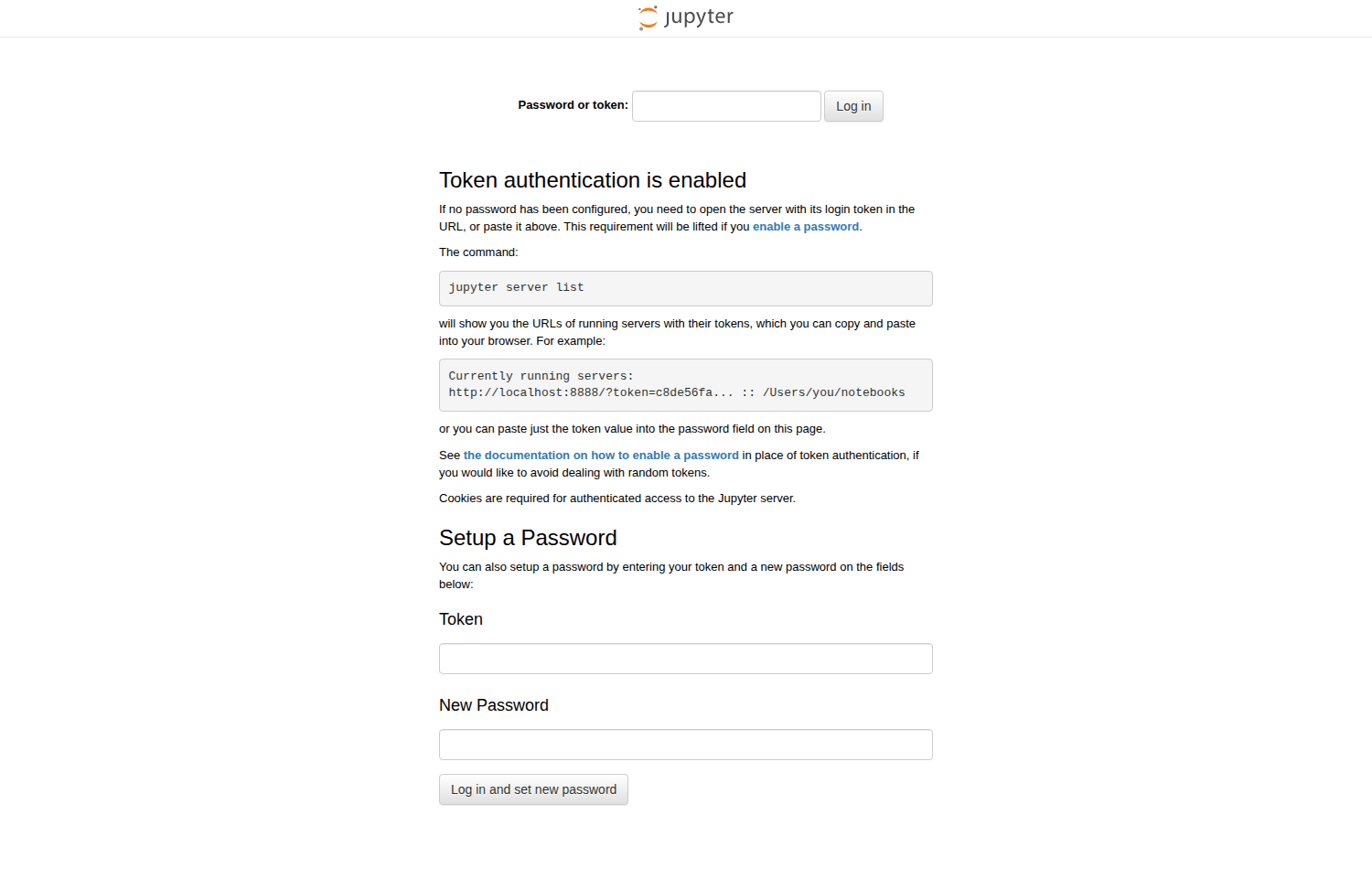
The setup notebook opens in a new tab. It is pre-filled for the workflow — click Run Pipeline in the notebook’s side panel. The pipeline runs all setup steps (create simulation box, solvate, add ions, energy minimization, NVT and NPT equilibration) and reports progress as N / 11 steps complete.
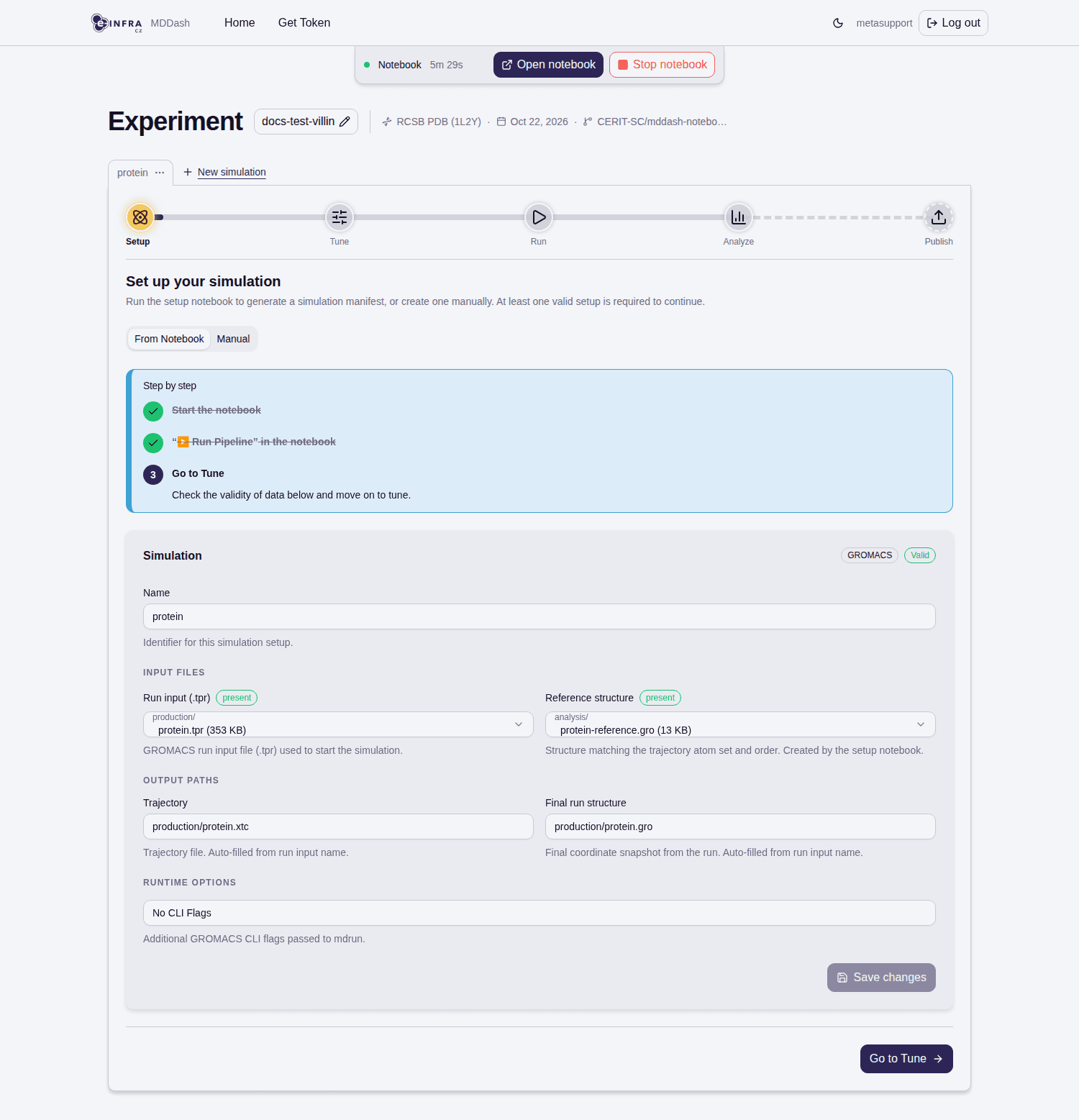
When the pipeline finishes (Pipeline complete, all steps ✓), go back to the experiment tab: the simulation manifest is now valid (the simulation shows a green Valid badge, with the produced .tpr run input and reference structure listed). Click Go to Tune.
4. Tune — find the best configuration
On the Tune step, set the production Number of steps and click Start tuning (confirm in the dialog). MDDash now benchmarks your simulation across ~36 hardware configurations (PME/NB on CPU or GPU, 1-8 MPI ranks, 1-8 threads) as short cluster jobs.
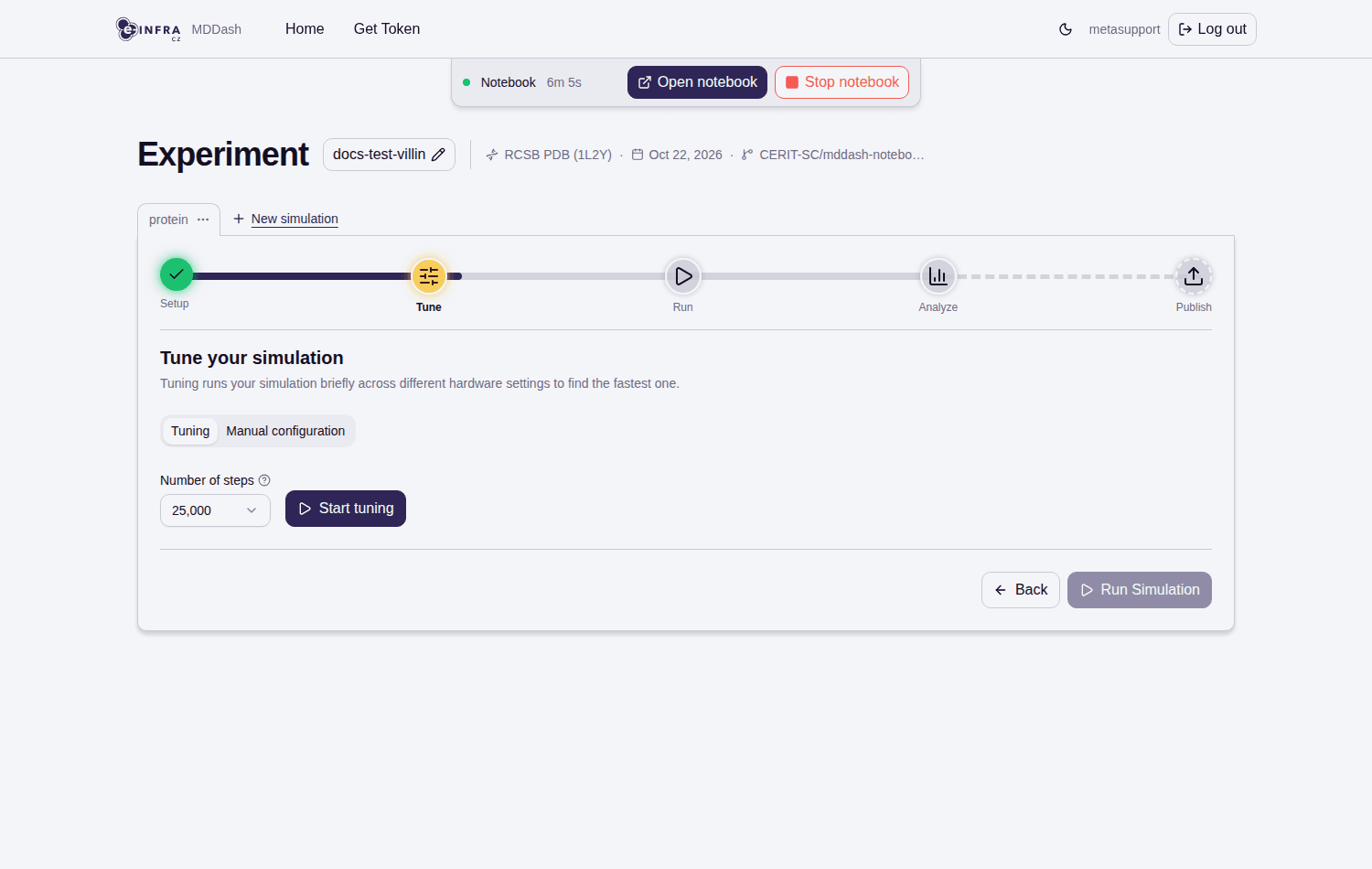
You can close the page — trials keep running and you can Stop tuning anytime. Each finished trial reports measured performance (ns/day), estimated run time and cost; the Fastest and most economical (eco) configurations are highlighted, and the Pick column lets you select one for the production run.
Tuning is optional: on the Run step, the Manual configuration tab lets you enter hardware parameters directly (PME on CPU/GPU, NB on CPU/GPU, MPI ranks, threads) and start the simulation without tuning.
5. Run, Analyze, Publish
- Run: pick a configuration (from tuning or manual) and start the production simulation. The Run page shows live progress and a Logs section (Gromacs log, standard output/error). You can Stop run (keeps results so far) or re-run.
- Analyze: after (or during) the run, inspect the trajectory in the embedded Mol* viewer and run built-in analyses (RMSD, PCA, hydrogen bonds, …) as cluster jobs — started from the analysis notebook.
- Publish: upload the experiment to MDRepo as a draft record with metadata; finish and publish in MDRepo to mint the DOI for the dataset.
6. Housekeeping
- Experiments are managed from the dashboard cards (rename, archive, delete from the card’s ⋯ menu).
- Your files live on a persistent personal volume (100 GB by default) mirrored to S3; see usage in the status bar. Stopping your server keeps everything.
- Close the notebook when done with setup (each experiment’s notebook counts toward a concurrent-notebook limit).
Where to find more
- MDDash user guides (upstream, always up-to-date): github.com/CERIT-SC/mddash/tree/master/docs/guides — overview, getting started, one guide per wizard step, storage, and an FAQ/troubleshooting guide.
- MDRepo — the publishing repository for MD data: mdrepo.org.
- Source code (MIT license): github.com/CERIT-SC/mddash.
Last updated on