 Documentation
OnDemand
Metacentrum Open OnDemand instance is a service that enables users to access Metacentrum via web browser.
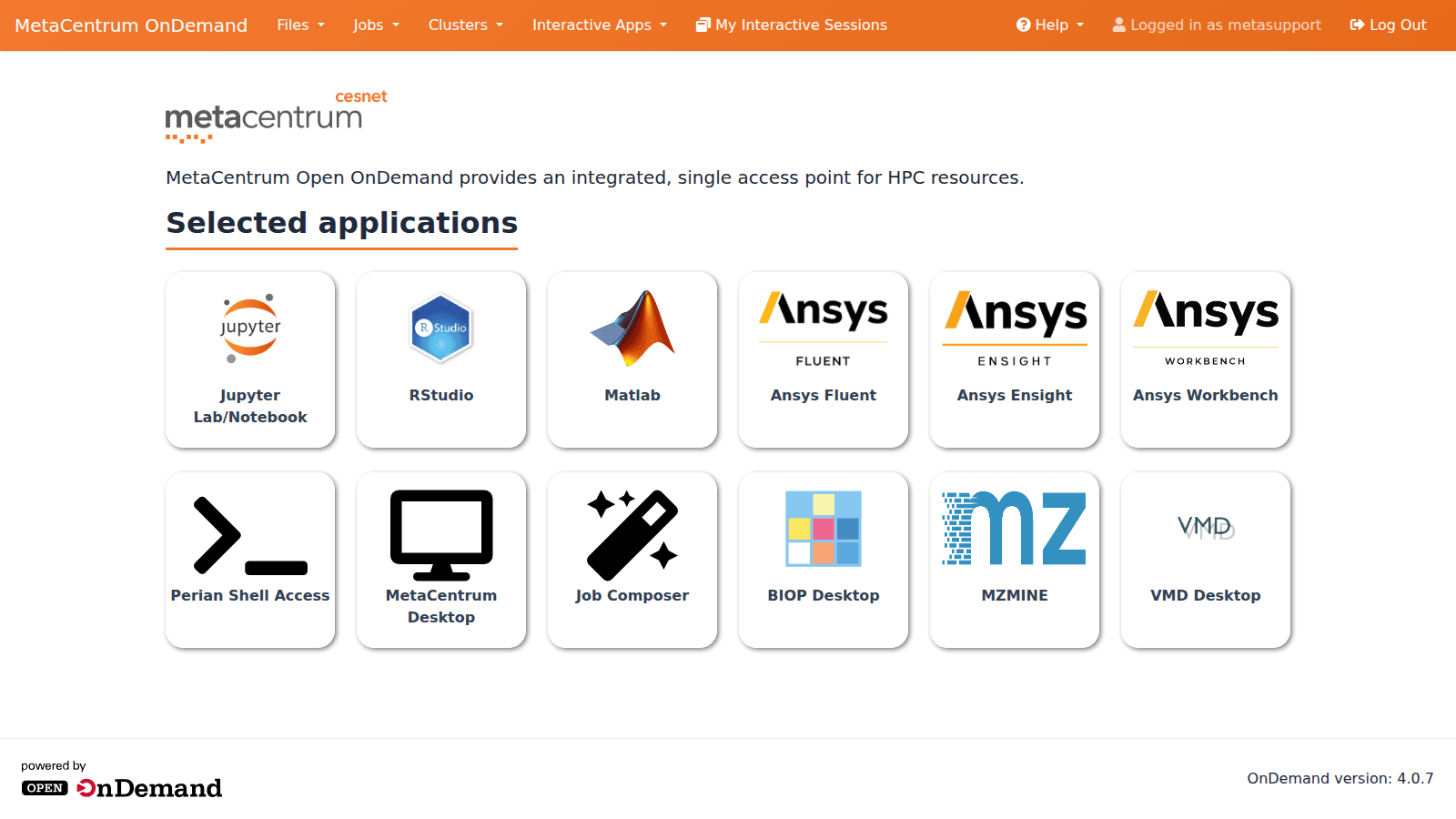
OnDemand enables users to
- access files and directories using a graphical File manager,
- run graphical applications,
- setup, modify and run batch jobs.
Among the pre-installed applications available are Matlab, ANSYS, Jupyter notebook, RStudio server, VMD and others (see the list below).
Authorization
Remember! OnDemand is a web service, and login is done by the user’s academic identity. Optionally, when the list of institutions appears, choose e-INFRA CZ password and log in with your MetaCentrum username and password.
Supported browsers are Google Chrome, Mozilla Firefox or Microsoft Edge.
Files
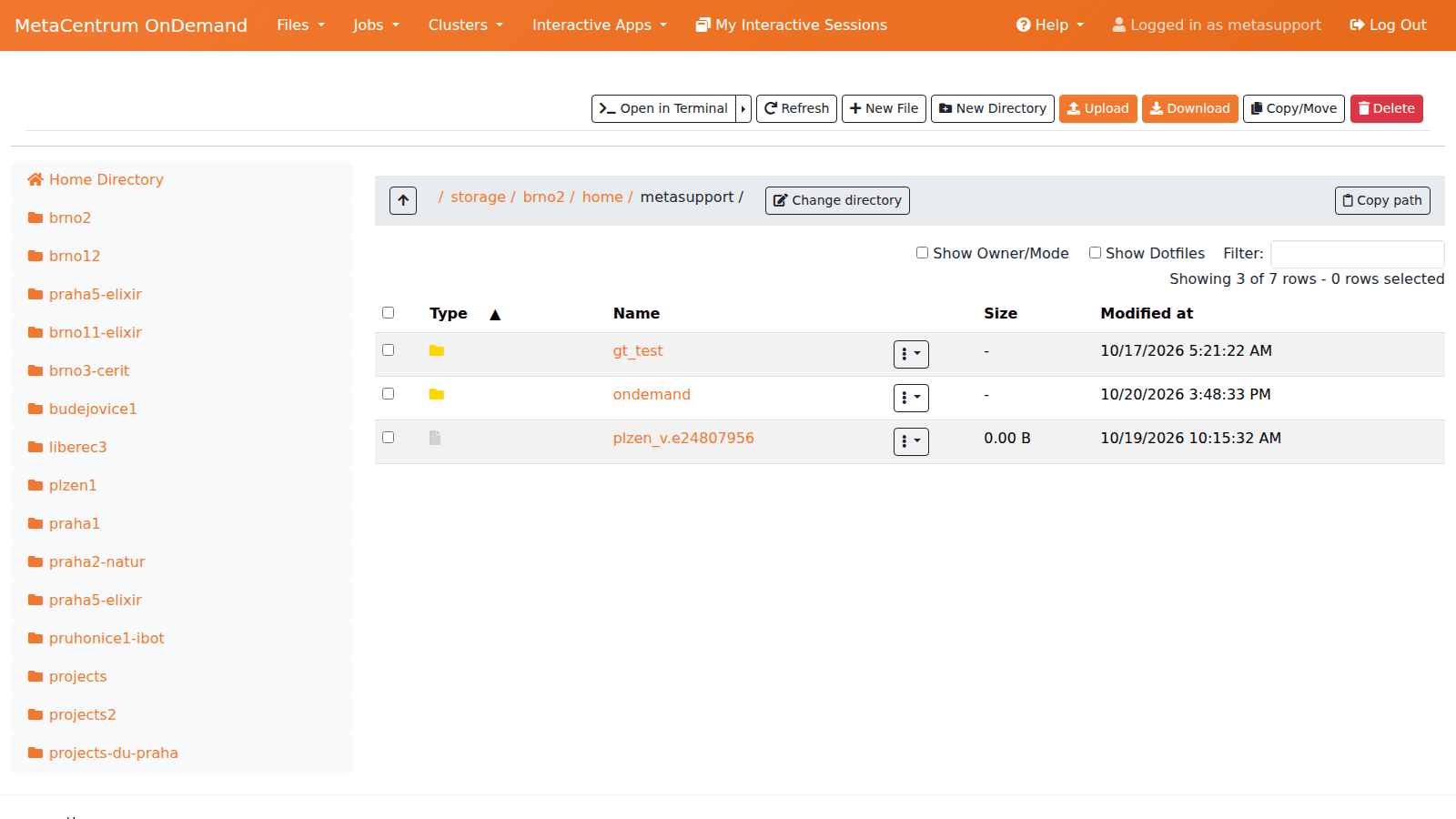
- browse Metacentrum storages,
- upload/download files from/to local PC,
- move files between storages,
- edit files on storages.
In the rolldown menu, there are pre-defined shortcut links to all your home directories on different storages (Home Directory = brno2 by default, plus brno11-elixir, brno12-cerit, brno3-cerit, budejovice1, liberec3-tul, plzen1, praha1, praha2-natur, praha5-elixir, pruhonice1-ibot) and to the shared project storages (/storage/projects, /storage/projects-du-praha, /storage/projects2).
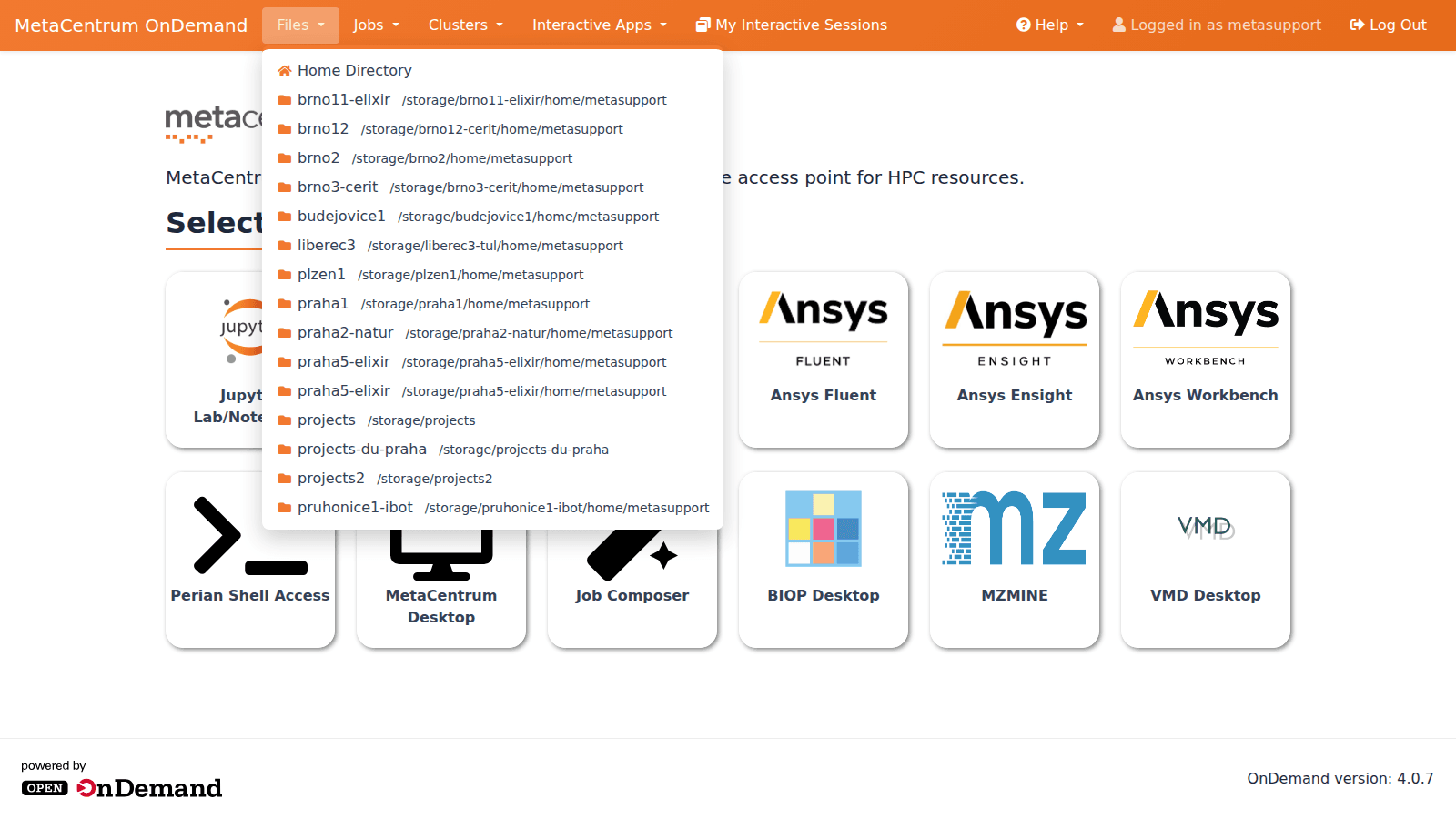
By default, the Home Directory link points to storage brno2.
From the Files interface you can also click Open in Terminal to open a shell in the directory you are browsing.
Jobs
Active jobs
Under this tab, you will find a list of all running or queued jobs on the PBS server. You can filter the view by cluster (MetaCentrum, Skirit, Tarkil, Zenith) and by user (only your jobs vs. all users’ jobs).
In the contrary to list of interactive sessions, you will see all jobs no matter whether they were submitted via the OnDemand interface or otherwise.
By clicking on the chosen job, you will find the job’s details.
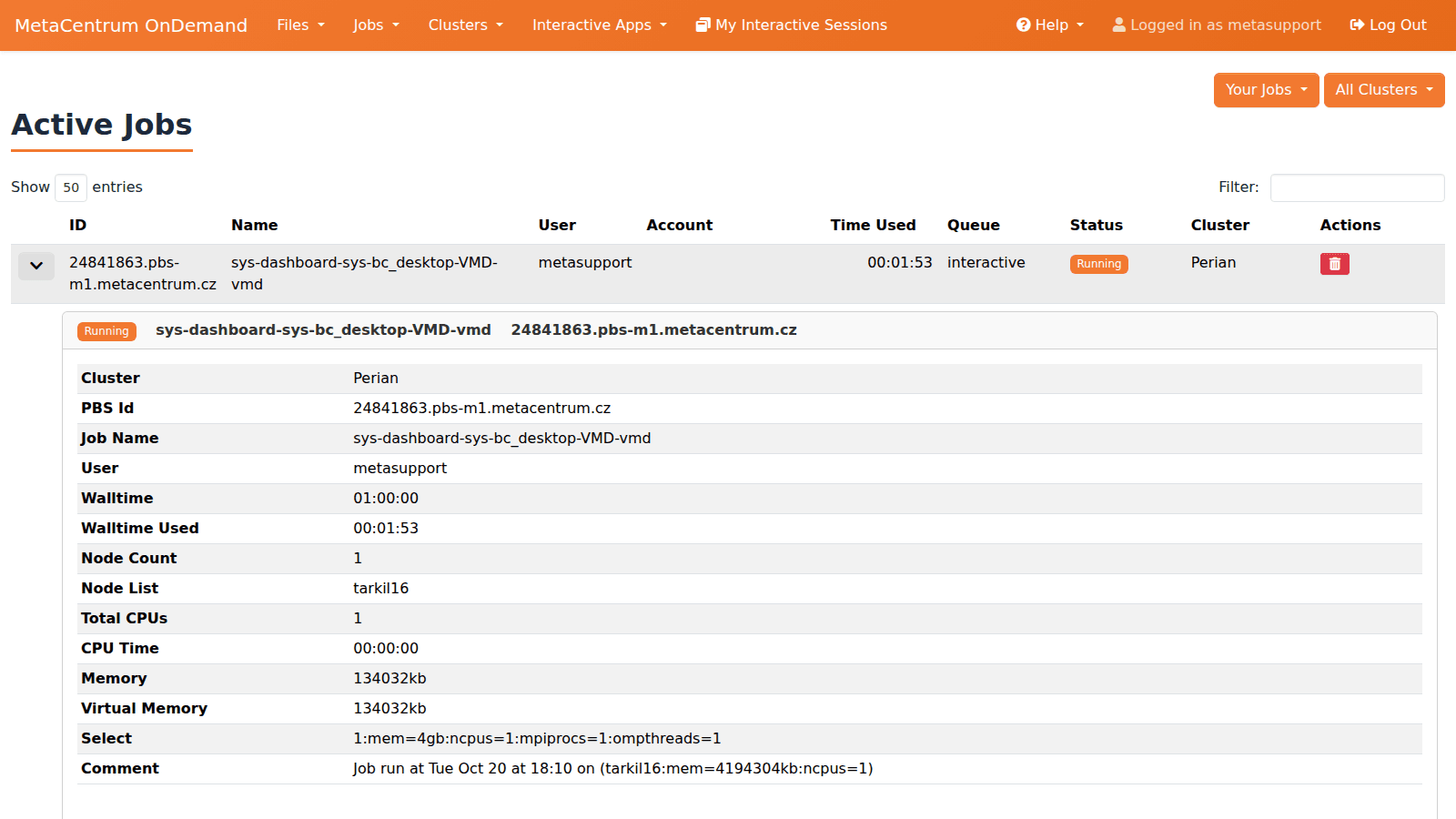
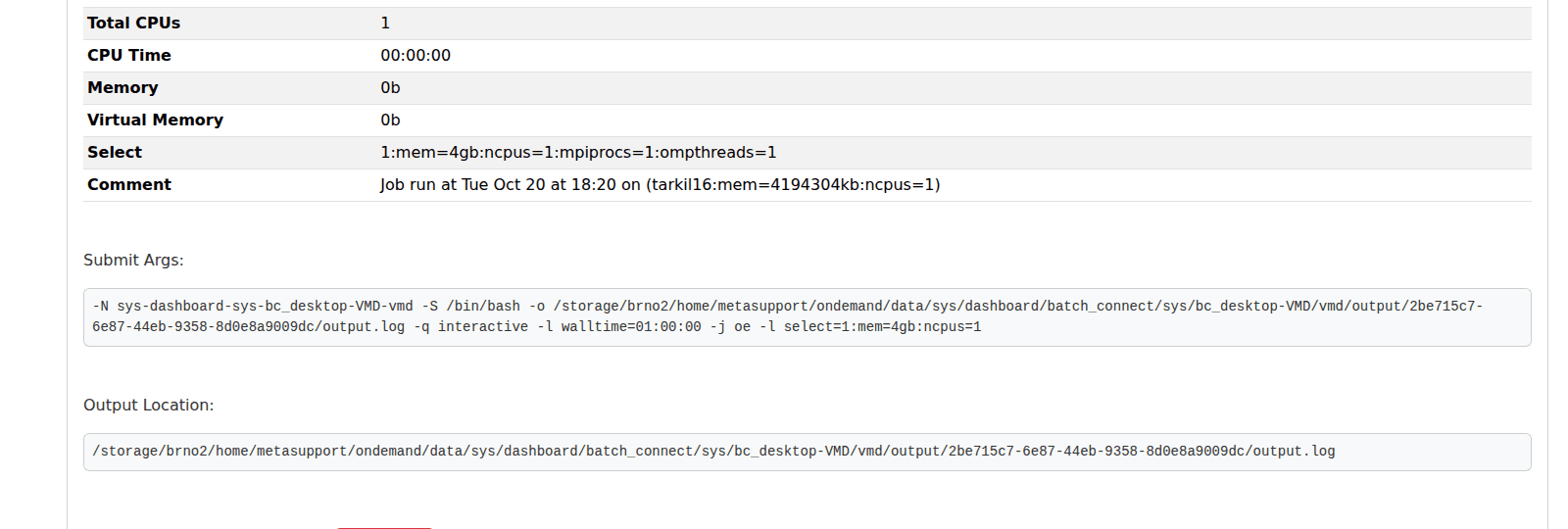
At the bottom of the job details table, you can get the location of the output files:
Job composer
Job composer is a GUI wizard to set up a batch job.
The workflow is: New Job → From Template (or From Default Template), pick a template, give the job a name, choose the cluster to submit to, and Create New Job:
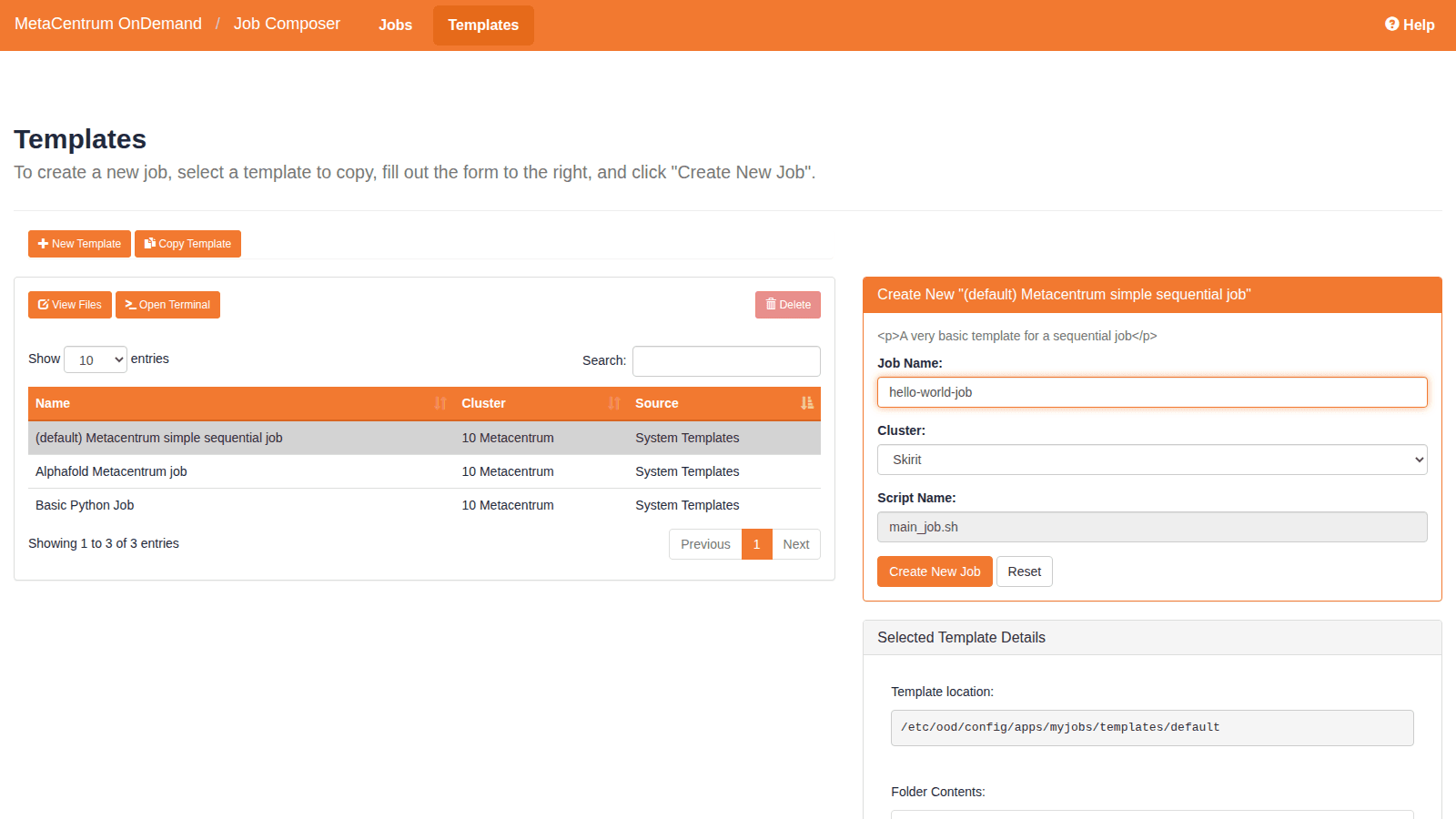
This copies the template’s script (e.g. main_job.sh) into a staging directory under ~/ondemand/data/sys/myjobs/projects/default/<id>/. You can then Edit Files (edit the script), set Job Options, and click Submit — the job goes to the PBS server like any qsub job, and its status is shown in the job table (and in Active jobs). Job output files (.o* logs and whatever the script writes) appear in the same staging directory.
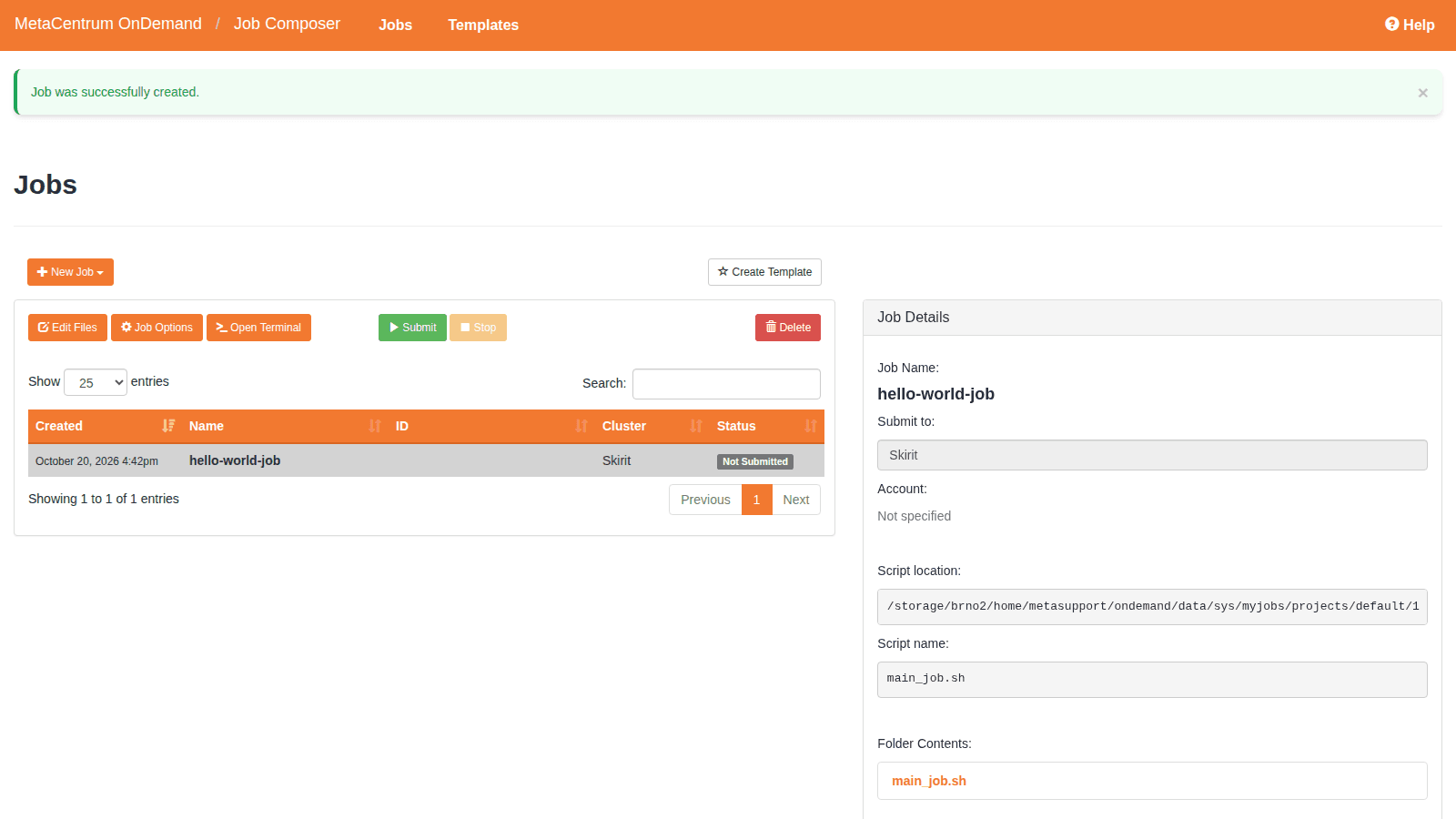
Available system templates include “(default) Metacentrum simple sequential job”, “Alphafold Metacentrum job” and “Basic Python Job”. You can also create your own templates (Create Template) or start a job from a previously run job directory (From Selected Job).
Clusters
The Clusters tab is OnDemand’s way to provide CLI access to MetaCentrum frontends. Currently, there are links to:
- skirit.metacentrum.cz
- tarkil.metacentrum.cz
- perian.metacentrum.cz
- zenith.cerit-sc.cz
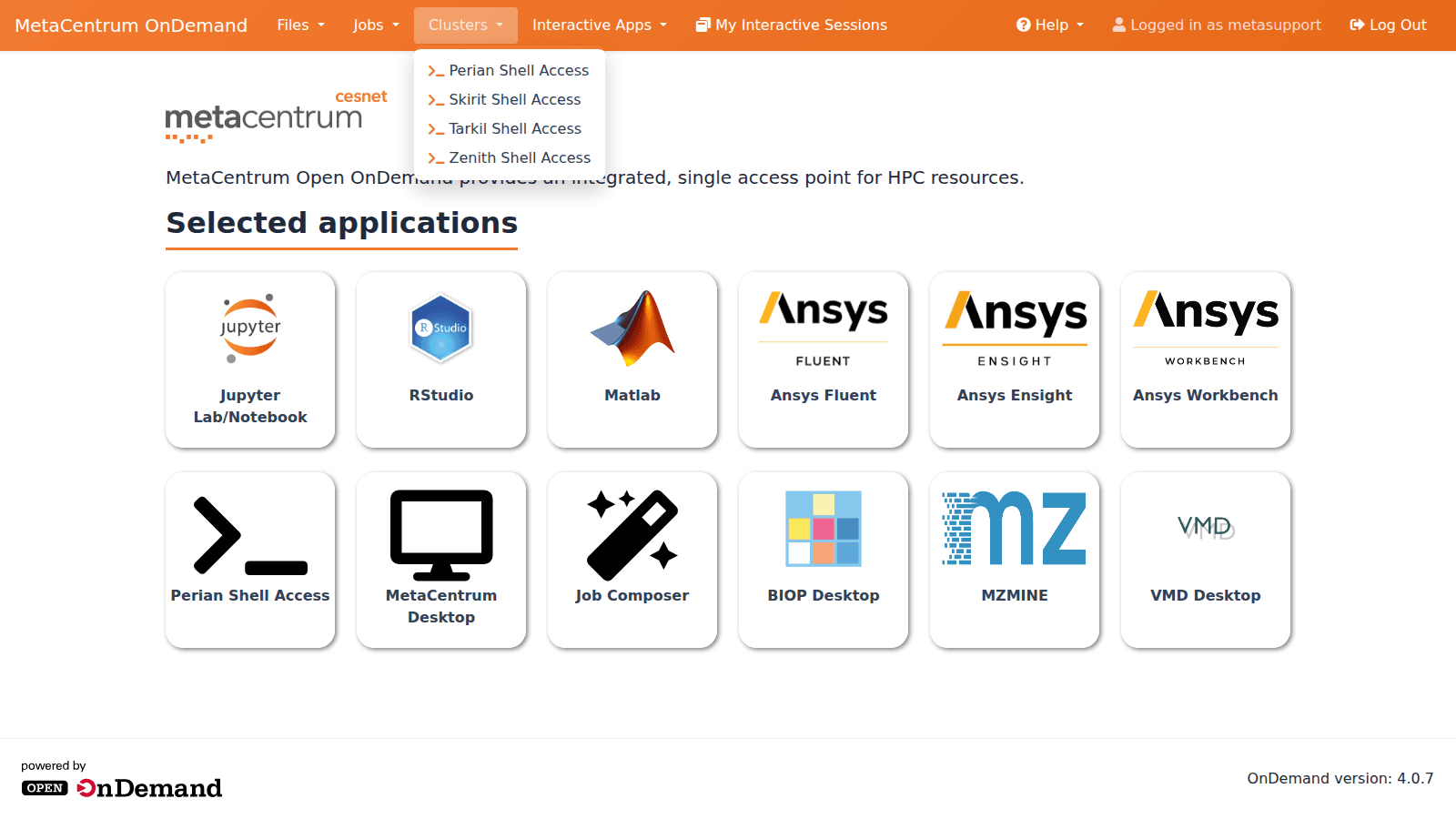
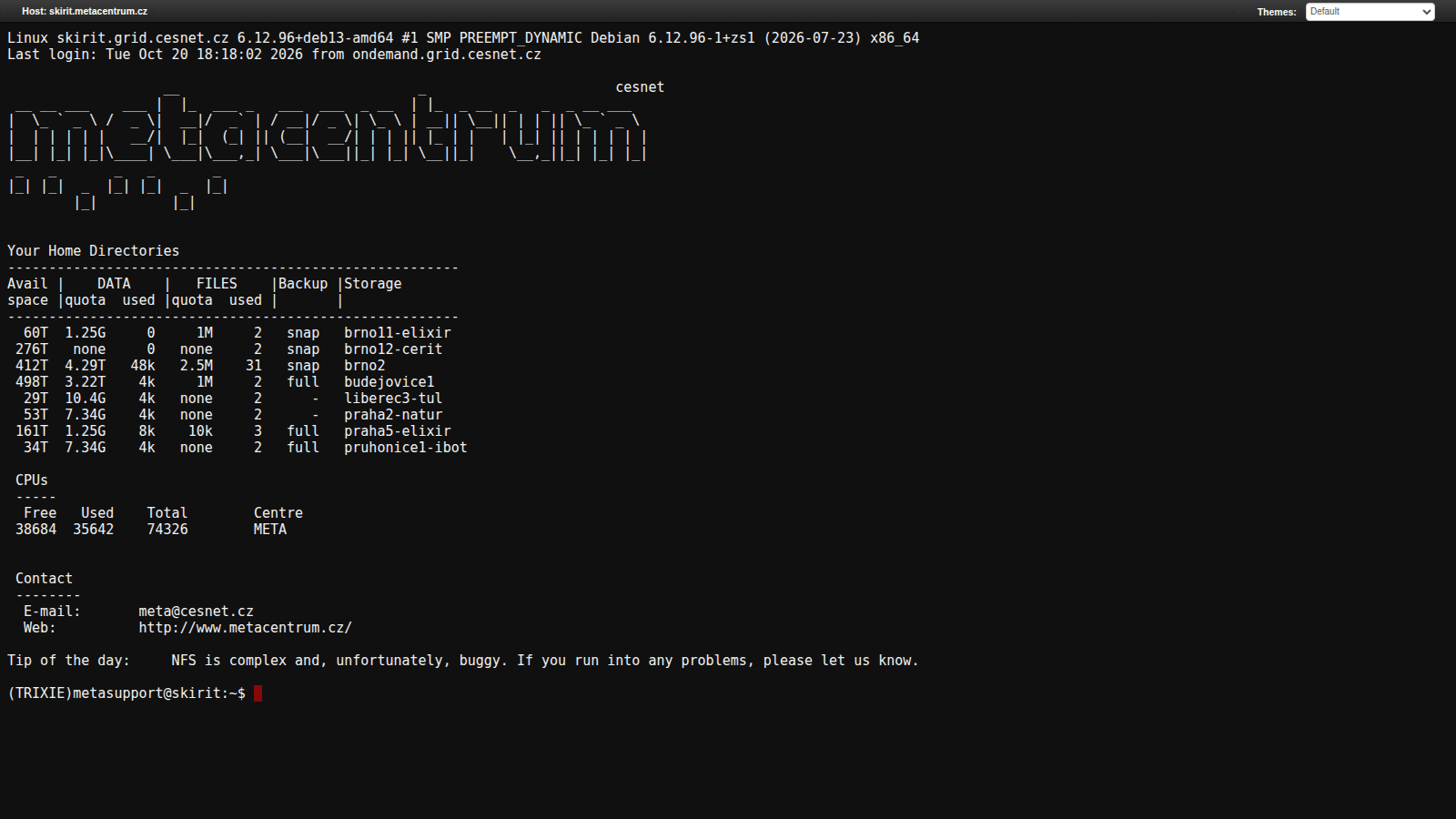
Clicking on “Shell access” will open an SSH connection in your browser:
Interactive apps
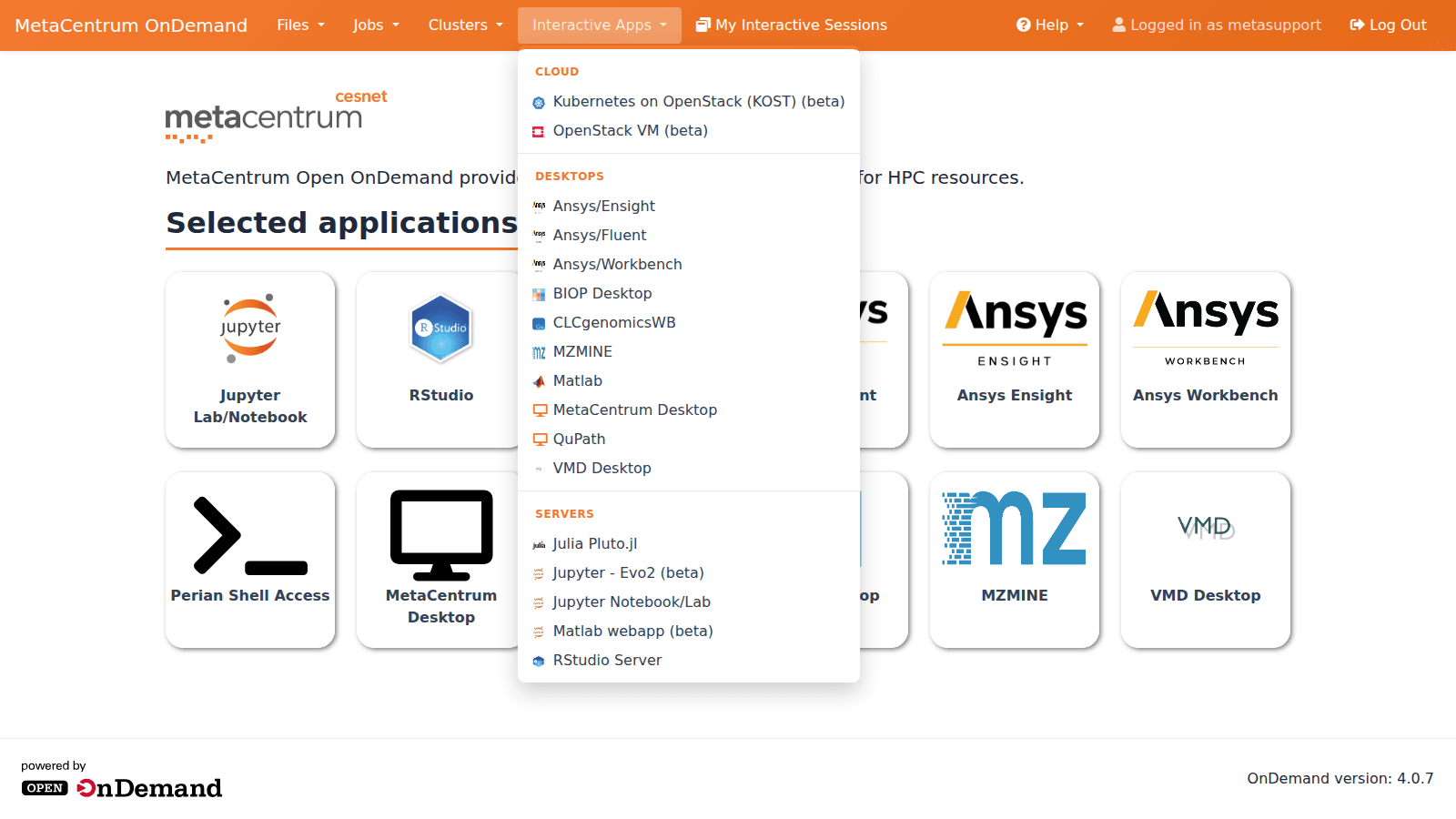
The “Interactive apps” tab lists all graphical software that can be run as an interactive job, grouped into Desktops, Servers and Cloud:
Desktops (full Linux desktop with VNC): Ansys/Ensight, Ansys/Fluent, Ansys/Workbench, BIOP Desktop, CLCgenomicsWB, MZMINE, Matlab, MetaCentrum Desktop, QuPath, VMD Desktop.
Servers (application runs in the browser): Julia Pluto.jl, Jupyter Notebook/Lab, Jupyter - Evo2 (beta), Matlab webapp (beta), RStudio Server.
Cloud: Kubernetes on OpenStack - KOST (beta), OpenStack VM (beta).
After it starts, the application runs as an interactive job on any node within the MetaCentrum infrastructure.
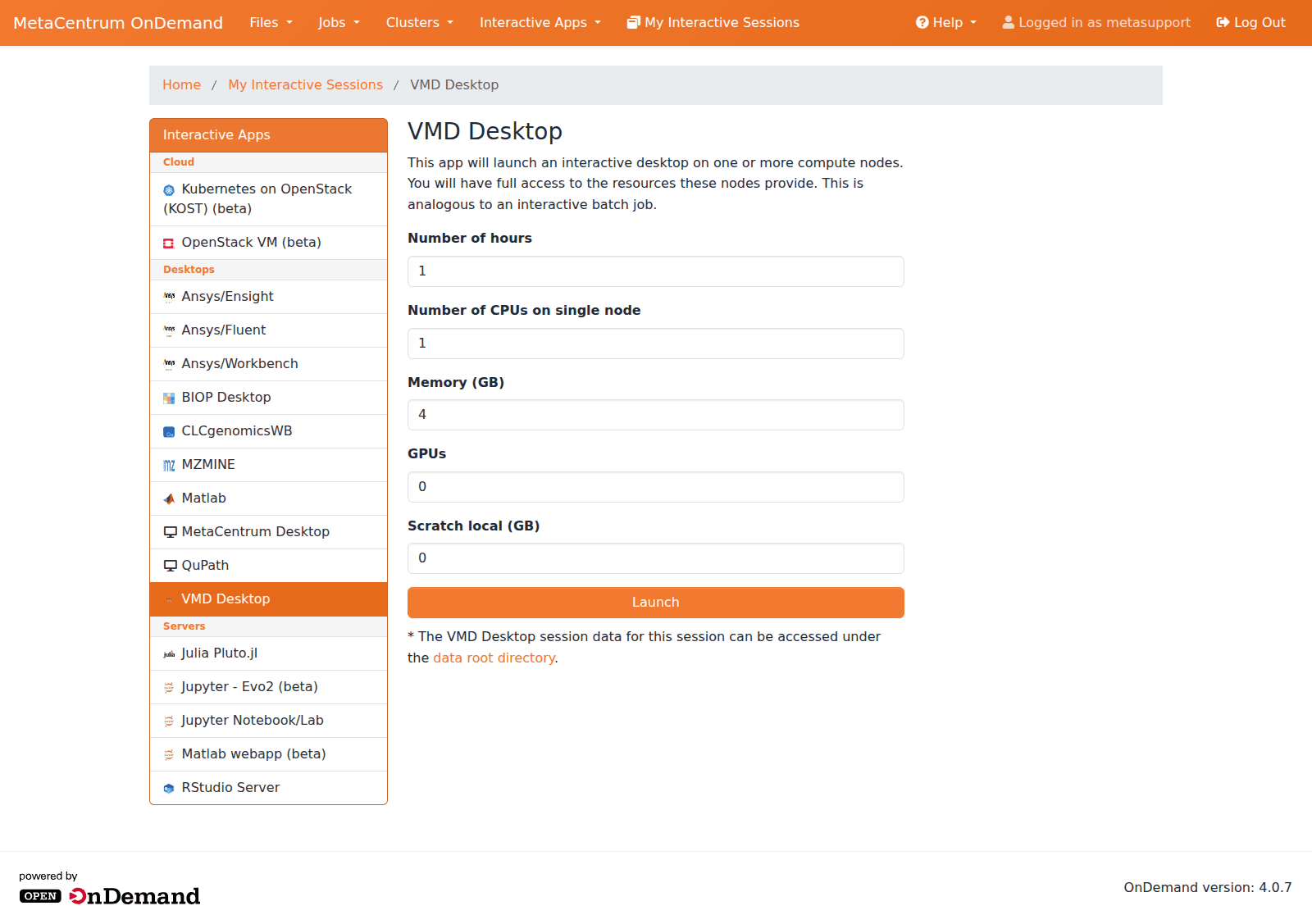
When launching an app, you specify the job parameters (number of hours, CPUs, memory, GPUs, local scratch). E.g. the VMD Desktop form allows 1-48 hours, up to 16 GPUs and up to 1000 GB of memory.
In consequence, the location of the home directory (location=city_XY in /storage/city_XY/home/user_123) can be different for every new run of an application.
In case you need, e.g. to upload some data to work on, it may be necessary to change the directory to the right storage.
Data directory
To store its own files, OnDemand creates automatically a directory ondemand in the current home directory. You will find there output files, error files and other data for batch jobs submitted from the OnDemand interface.
For example, after running the VMD Desktop, all output from the session will be in ~/ondemand/data/sys/dashboard/batch_connect/sys/bc_desktop/vmd/output/ONDEMAND_SESSION_ID directory.
Warning
The ONDEMAND_SESSION_ID is OnDemand’s internal hash for the session, not PBS job ID! It looks like e.g. 9a8b3f2b-0c6d-4cbd-922b-c587f2c2f0fb.
You can remove the content of OnDemand data directories, or even the ~/ondemand directory itself, at any time you wish.
Every time you run OnDemand, it will first look for the existing directory ~/ondemand. When it does not find any, it creates a new one.
Note
Data of the Job Composer (saved jobs and templates) live in ~/ondemand/data/sys/myjobs/production.sqlite3. Deleting this file means losing your saved Job Composer jobs.
RStudio issues
As the home-on-any-storage feature of OnDemand was causing problems for RStudio users, we applied a workaround for this.
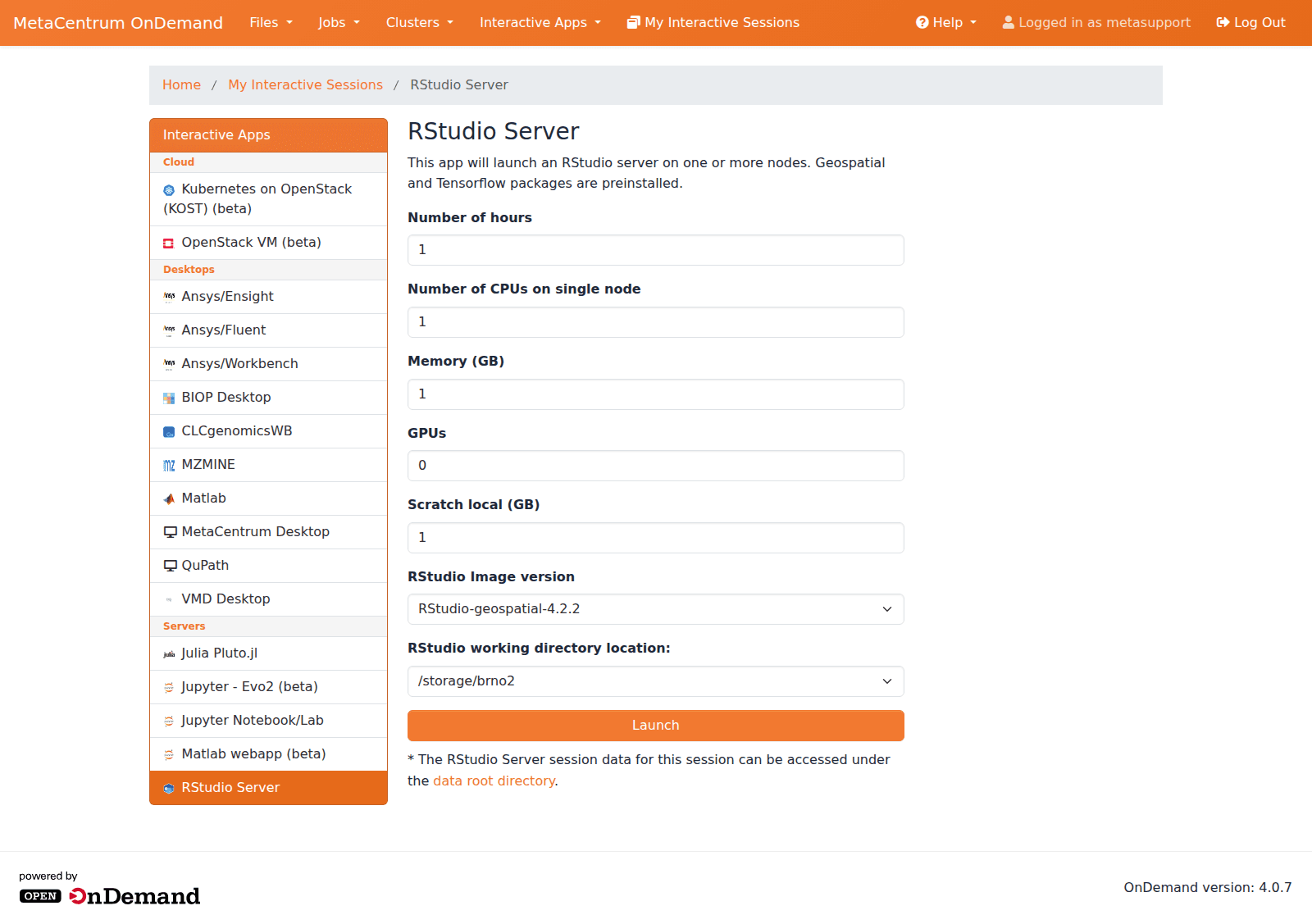
The default location for the RStudio interactive app is set to brno2.
Moreover, users can overwrite this setting by choosing a different location (RStudio working directory location: brno2, plzen1, praha1 or brno12-cerit) from the drop-down menu:
My Interactive Sessions
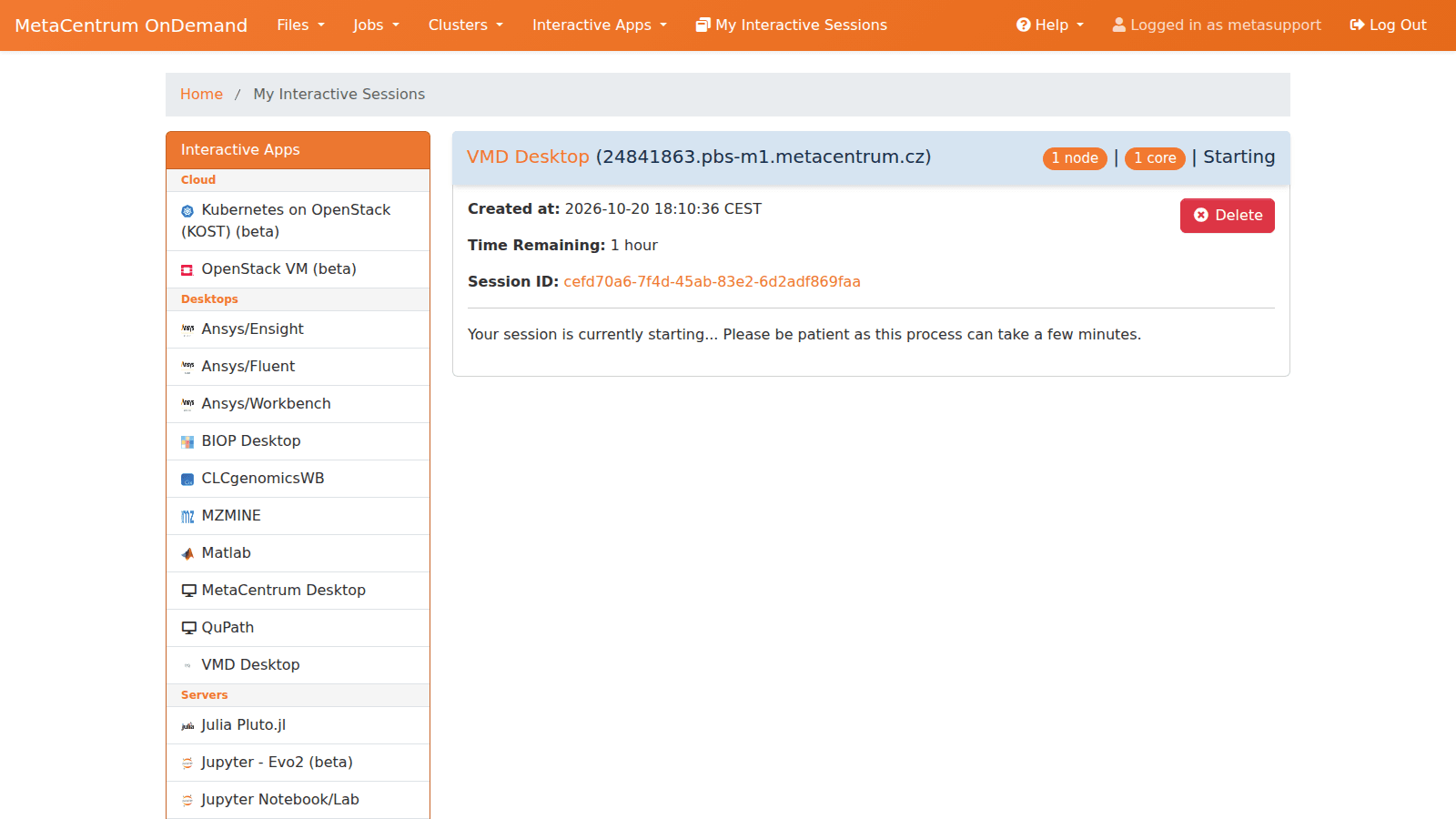
Under this tab, you will see a list of your sessions running in OnDemand.
You can launch or delete running sessions. By closing the tab in the browser, you will not lose your session - it can be relaunched, even on another computer, using the blue Launch button if the time reserved for the session is not up yet.
Next to the ‘Launch button is the grey View only (shareable link) button, which is useful if you want to share a live view of your desktop application with a colleague.
Kerberos ticket expiration
In a long-term open session, Kerber’s ticket may expire. This situation is typically reported by an error message.
Key has expired @ dir_s_mkdir - /storage/brno2/home/user_name
An ordinary page reload is insufficient to renew a user’s Kerberos ticket. The user must click the Help button in the menu (upper right corner) and continue with Restart Web Server.
See also
- Developing your own OnDemand apps — build and run custom web apps under your account.
Last updated on