 Documentation
usegalaxy.cz
Galaxy is a web-based platform for accessible, reproducible, and transparent computational research. Used by researchers across the globe to access public infrastructure.
Having originated in the bioinformatics community, Galaxy spans numerous scientific disciplines (ecology, chemistry, NLP, climate science, social sciences, …). Nowadays, thousands of computational tools are available, supported by dozens of scientific and software development teams.
The user community is worldwide, with main installations in the US, EU, and Australia, complemented with a network of national installations (usegalaxy.*).
The Czech national service usegalaxy.cz is provided by e-INFRA CZ / MetaCentrum together with ELIXIR CZ.
It provides thousands of tools from various scientific domains and offers large data quotas for Czech researchers and their collaborators.
Accessing usegalaxy.cz
The web interface is available at https://usegalaxy.cz and requires users to log in with either e-INFRA CZ or Life Science login.
- e-INFRA CZ login is available to virtually all Czech academia members via their own institutional credentials. It comes with 250 GB storage space on usegalaxy.cz.
- ELIXIR/Life‑Science is even wider federation of institutions spanning basically the whole Europe and more. It comes with 50GB of storage quota.
MetaCentrum membership required
To access the usegalaxy.cz service you have to go through a free Metacentrum registration using your institutional academic identity. Collaborators of Czech academics please write us an email to meta@cesnet.cz to gain access.
User Quotas
| Resource | Limit (standard) |
|---|---|
| Storage | 250 GB (e‑INFRA CZ Login) 50 GB (Life Science Login) |
| Concurrent jobs | 10 jobs |
| Maximum single dataset | 50 GB |
Support requests
Please feel free to ask for more resources by emailing galaxy@cesnet.cz.
Describe your project’s needs to us and we will assist with increasing your storage/compute/concurrency or other resource quotas temporarily. We can also install more available tools, help you wrap a new tool for Galaxy, or collaborate on designing a workflow.
Using usegalaxy.cz
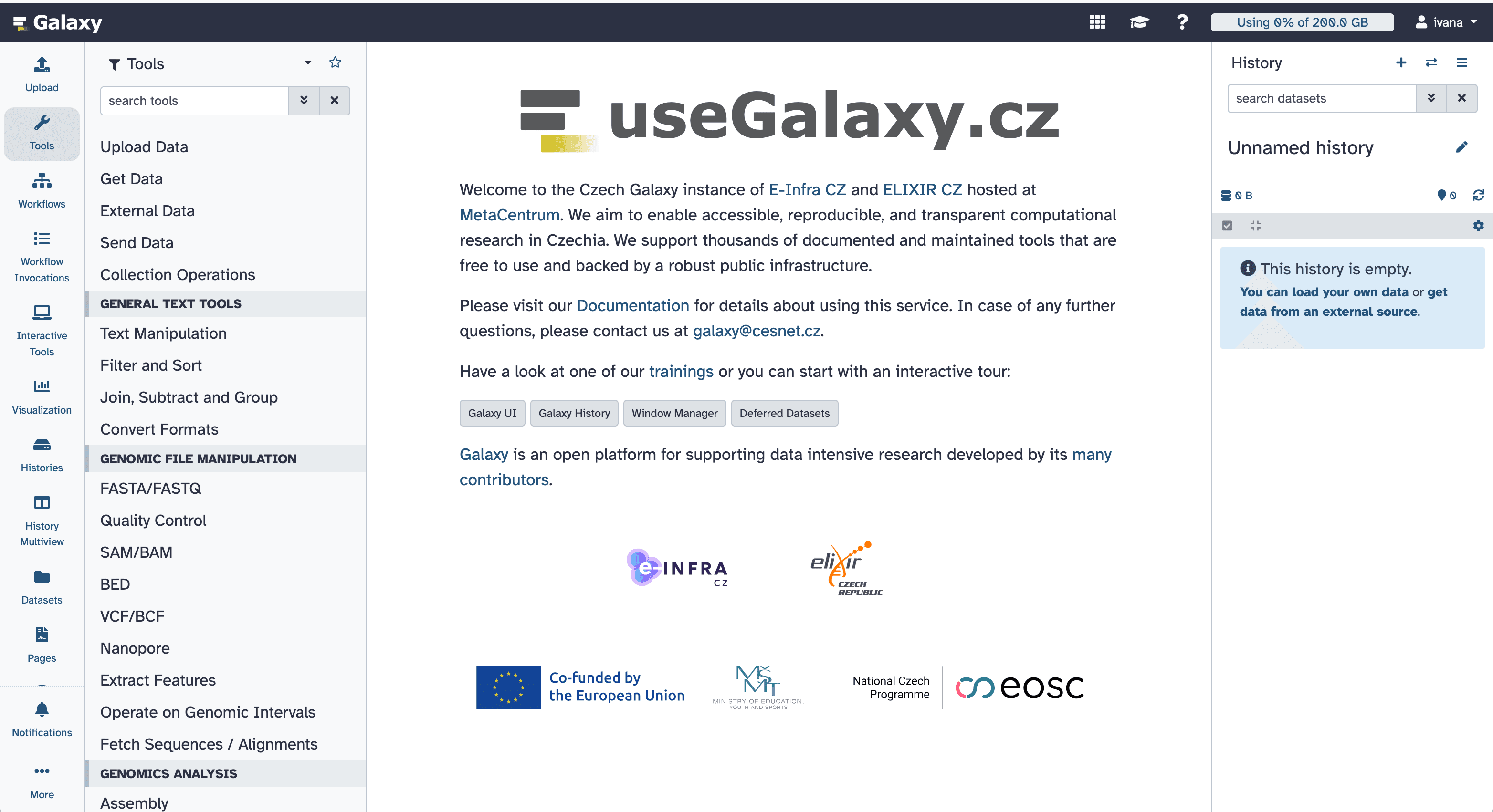
The user interface shows:
- list of available tools (left)
- submission form or results of computation (center)
- history, i.e. set of files with their mutual provenance links (right)
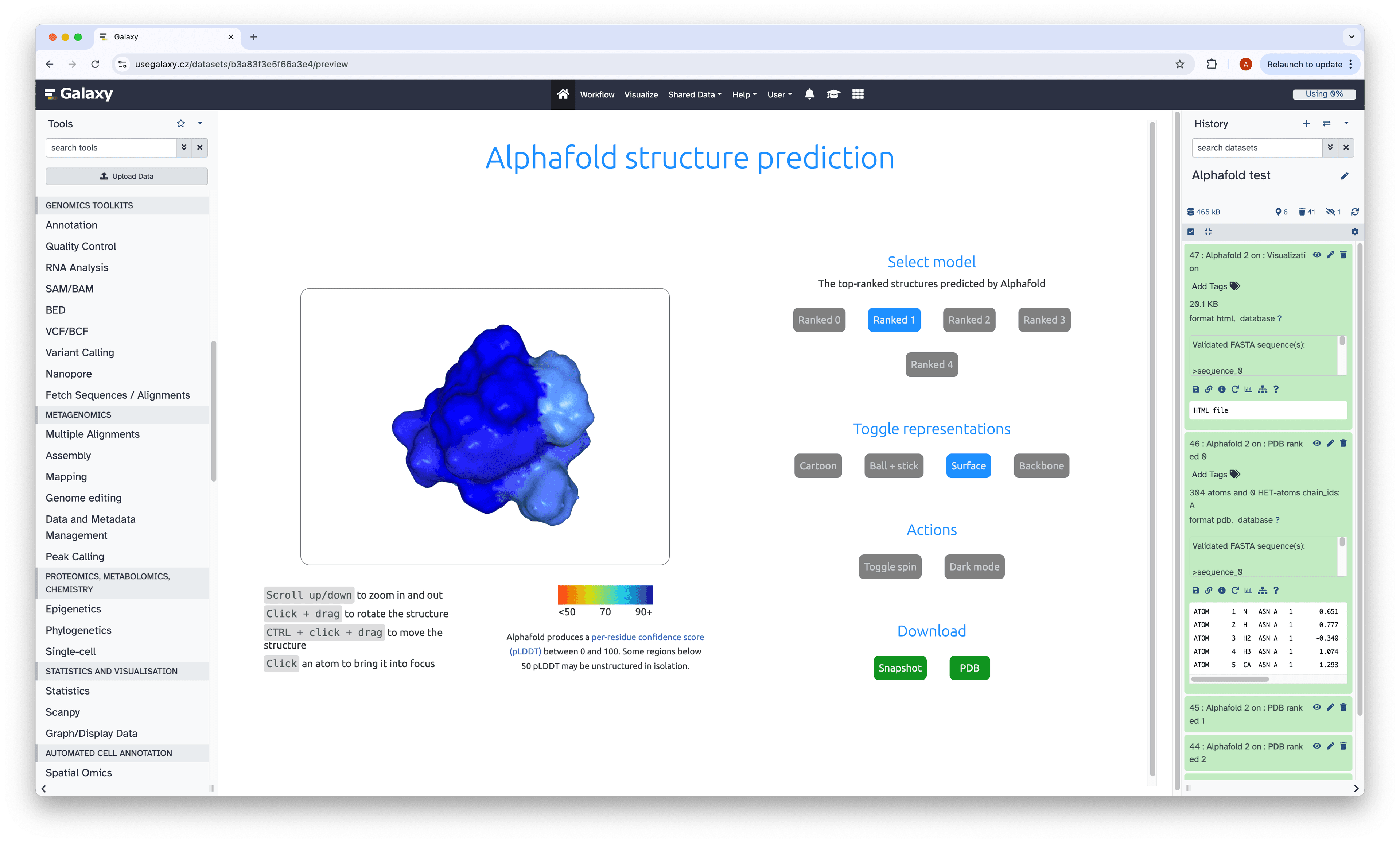
The Galaxy Training Network GTN hosts a large collection of tutorials ranging from basic to advanced topics.
- Introduction to Galaxy for beginners:
- Data import & export – HTTPs, S3, Invenio, Zenodo, etc.
- Workflow building – creating, sharing, and publishing pipelines
How to link multiple identities
For ease of use we strongly recommend using a single login identity. However if you use both e-infra and LSlogin identities please login with one and add the other one to your Galaxy account. This prevents account duplication problems when switching between logins.
- Click on User in the top menu
- Select Preferences.
- Select Manage Third-Party Identities.
- Choose the other identity provider and authenticate yourself.
If you already have two Galaxy accounts linked to different identities please contact us at galaxy@cesnet.cz — we will help you merge them.
References and Use Cases
NRP integration use case
Presentations
Video presentations delivered during the 2025 EOSC Symposium:
Last updated on